10 Game Settings That Are Silently Ruining Your FPS
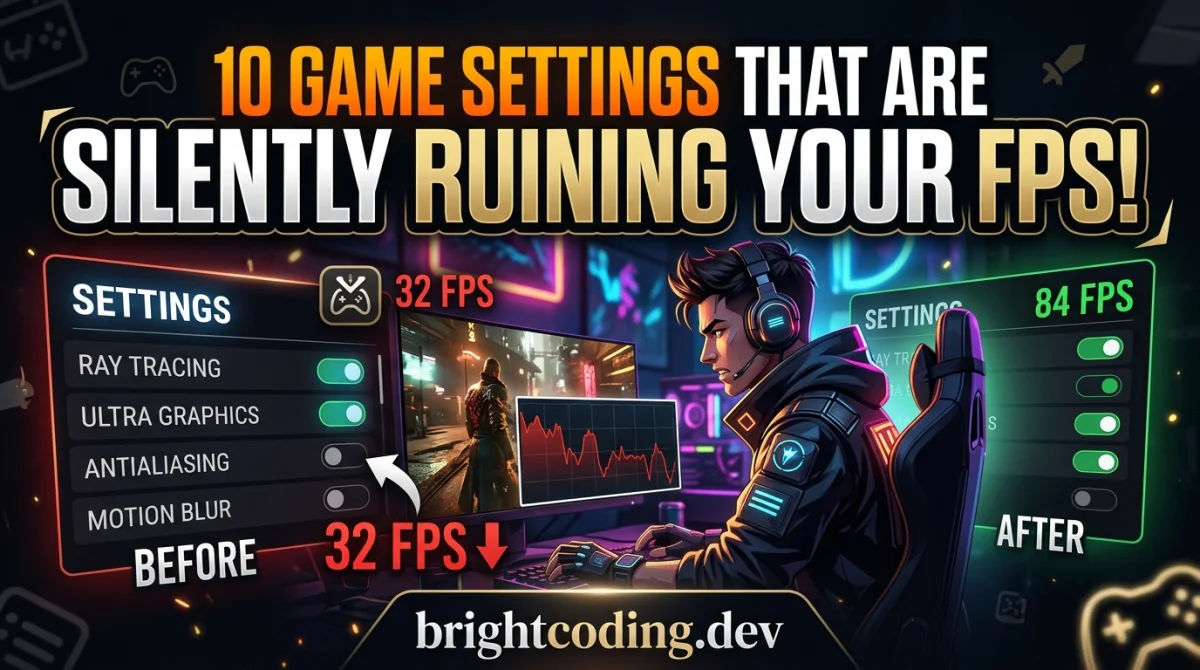
You dropped to 45 FPS mid-firefight, and the killcam shows you freezing for a full second. Your hardware can handle it. Most games enable a handful of expensive, barely-visible effects by default, and those settings quietly eat the frames you need for smooth tracking and fast reactions. The 10 game settings that are silently ruining your FPS are all in your graphics menu, and most take seconds to fix. This guide lists them in order of impact with exact values to try, so you know what to drop without wrecking the picture.
Quick answer: the settings that hurt FPS most are shadow quality, volumetric lighting, ambient occlusion, motion blur, post-processing, anti-aliasing, draw distance, anisotropic filtering, reflections, and dynamic resolution. Set shadows to medium or low, turn off motion blur and volumetric fog, cap volumetric quality, and use a high-performance anti-aliasing option. Test after each change to see the real FPS gain.
The 3 Settings That Devour Frames First
Start with the big three. These effects are the most expensive per-frame costs in modern engines, and cutting them gives you the fastest, most visible FPS boost.
Shadow Quality
Shadows recalculate every time the camera or light moves, making them one of the most expensive settings in any engine. High and Ultra shadow resolutions are hard to see in gameplay, yet they can cost 15 to 30 percent of your frame rate in dense scenes.
Drop shadows from Ultra to Medium first. You keep soft, readable ground shadows but reclaim most of the performance. In Cyberpunk 2077 and Red Dead Redemption 2, this single change can add 20 to 40 FPS on mid-range cards.
Volumetric Lighting and Fog
Volumetric lighting simulates god rays and thick fog scattering through the air. It looks cinematic and costs a fortune. Titles like Escape from Tarkov and Rust are notorious for frame dips in foggy areas.
Set volumetric quality to Low or Off. Distant fog still renders, but the expensive per-pixel light scattering disappears. Expect the biggest gains in open areas and weather-heavy maps.
Ambient Occlusion and Post-Processing
Ambient occlusion (AO) shades the contact points where objects meet, adding subtle depth and eating FPS. Screen Space Ambient Occlusion (SSAO) is the mild version; HBAO+ and ray-traced AO cost far more. Post-processing bundles motion blur, film grain, and chromatic aberration, three effects that add nothing in gameplay.
Set AO to Off or Low, then turn off motion blur, film grain, and chromatic aberration. You gain frames and a sharper image that is easier to aim with. For a fuller list of filters to kill, check out our guide on which settings to turn off first.
4 More GPU-Bound Settings to Drop Next
These four rarely get mentioned in "fast settings" guides, but they quietly tax your graphics card on every frame.
| Setting | What it does | Recommended |
|---|---|---|
| Anti-aliasing (AA) | Smooths jagged edges | FXAA or MSAA 2x instead of 8x |
| Reflections | Mirrors and wet surfaces | Off or Low in shooters |
| Draw distance | Renders distant objects | High is fine, Ultra rarely needed |
| Anisotropic filtering | Sharpens angled textures | 8x, the last 8x is nearly invisible |
Anti-aliasing is the biggest trap. Ultra AA on a 1440p monitor is wasted because high resolutions hide most jaggies anyway. FXAA costs almost nothing, while MSAA 8x can halve your FPS. Reflections are similarly costly; nobody has time to admire puddles mid-fight.
The CPU-Bound Setting Nobody Checks
Most players focus on the graphics menu, but stutter and low lows often come from the CPU. The classic offender is the frame cap combined with a mismatch between your refresh rate and your actual FPS.
If your monitor is 144Hz but your PC averages 100 FPS, uncapped gameplay produces uneven frame times. Capping 3 to 5 frames below your stable average, say 96 FPS on a 144Hz panel, smooths pacing and feels faster even though the number is lower. Pair this with a low-latency mode for the double win covered in our guide to reducing input lag.
Grass and Physics Density
Games like ARK, Valheim, and Rust render hundreds of grass blades per square meter. Grass density and cloth or hair physics hammer the CPU and GPU at once.
Set grass density to Low in survival titles and disable hair or cloth simulation. In dense forests you can gain 10 to 25 FPS while losing almost no detail.
The Free FPS You Are Already Paying For
Two settings are pure waste on almost every system. The first is dynamic resolution in reverse: Ultra presets often downscale on purpose, making your GPU work harder for a blurrier image.
The second is resolution scale above 100 percent, which renders more pixels than your monitor can show. FPS drops and you see nothing new. Keep it at exactly 100 percent.
If you have changed all of these and FPS still feels flat, the bottleneck might not be the game at all. Read about why your GPU is not running at 100 percent and how to optimize your PC or console before you upgrade hardware you may not need.
The One-Minute Cheat Sheet
- Shadows: Medium or Low, biggest single gain
- Volumetric fog: Off or Low, huge in open worlds
- Ambient occlusion: Off, barely visible in motion
- Motion blur and film grain: Off, pure clarity boost
- Anti-aliasing: FXAA, never Ultra on high-res displays
- Reflections: Low, no one notices mid-fight
- Resolution scale: exactly 100 percent
- Frame cap: your stable FPS minus 3 to 5
Apply these eight changes in about a minute, then run your game. Most players gain 20 to 40 percent FPS with zero visual downgrade they can notice in a fight. Once your frame rate stabilizes, your next upgrade is the display; our 144Hz vs 240Hz monitors comparison will tell you if a faster panel is worth it.
Key Takeaways
- Shadow quality and volumetric lighting are the two biggest FPS sinks in modern games.
- Motion blur, film grain, and ambient occlusion add nothing during gameplay and cost frames.
- Anti-aliasing above FXAA is wasted on 1440p and 4K screens.
- Capping FPS a few frames below your average smooths stutter more than uncapped output.
- Resolution scale above 100 percent is pure waste.
- Test one change at a time so you know which setting actually moves the needle.
Frequently Asked Questions
Why does my FPS drop when I look at certain areas?
That is almost always volumetric lighting, shadows, or grass density recalculating in that scene. Lower those three settings and the dips shrink dramatically in open-world and survival games.
Is Low always better than High?
No. Some Low settings disable features you do want, like anisotropic filtering, and the image gets blurrier for no FPS gain. Drop cost-heavy effects first and keep cheap quality settings where you can see them.
Do these settings matter on console?
Yes. Console games use the same engines and preset graphics profiles. Using Performance mode instead of Quality mode on PS5 and Xbox Series X is the console version of this entire guide.
Conclusion
You do not need a new GPU to fix bad FPS. The 10 game settings that are silently ruining your FPS are sitting in your menu right now: shadows, volumetric effects, ambient occlusion, post-processing, and a few hidden traps. Drop them in the order listed, cap your frames sensibly, and test after each change. Twenty minutes of tweaking can feel like a hardware upgrade.
Which setting gave you the biggest FPS jump? Drop it in the comments below, share this guide with a friend who plays on a laptop, and follow along for more settings, performance, and PC gaming gold.
Ready to play?
Puzzle, arcade, 3D, word & sports games for every age — instant play, no registration.
Comments
No comments yet. Be the first to share your thoughts!