Input Lag Explained: How to Reduce It in Every Game
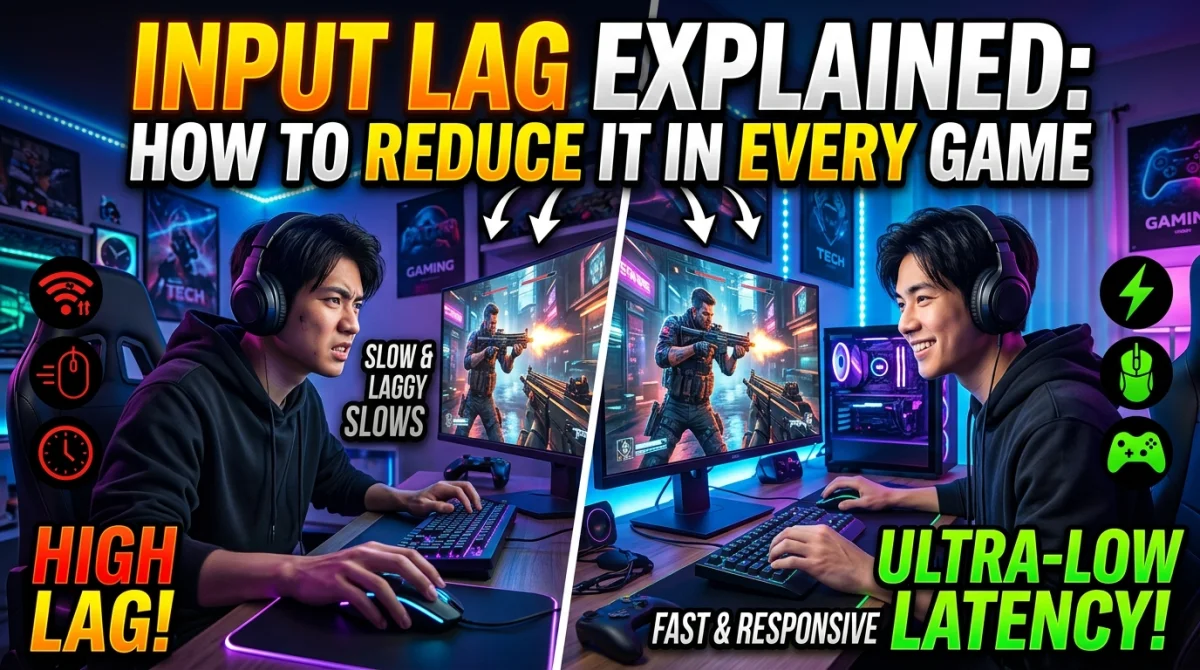
Your shot fires a fraction late. Your dodge lands a hair after the hitbox closes. That tiny gap is input lag, and in competitive games it decides fights before they start. Most players assume it is a hardware problem, but the biggest sources of delay live in software settings you can change tonight. This guide explains exactly where input lag comes from and walks you through the fixes that cut real milliseconds, from disabling VSync to enabling Nvidia Reflex. No expensive gear required. Most players shave 30 to 50 milliseconds off their total delay in a single session.
Input lag is the delay between pressing a button and seeing the action on screen. Cut it by turning off VSync, enabling Nvidia Reflex or AMD Anti-Lag, uncapping or properly capping your frame rate, switching your TV to Game Mode, and setting your mouse to 1000 Hz polling. A monitor's overdrive mode and a wired connection shave off more. Most players remove 30 to 50 ms of total delay in one sitting.
What Input Lag Actually Is
Input lag is total delay, the sum of every stage between pressing a button and seeing the pixels change. It includes your mouse, the game engine, the GPU pipeline, and the monitor itself. Measured end to end, a typical setup sits between 40 and 100 ms depending on hardware and settings.
That matters because the average human reaction time to a visual cue is roughly 200 to 250 ms. If your system adds 50 ms of lag on top, an enemy who sees you first wins by a full reaction cycle. Cut the delay in half and your reactions genuinely feel faster.
The Four Layers of Total Delay
| Layer | Typical delay | Where to fix it |
|---|---|---|
| Peripheral | 1-4 ms | Mouse polling rate, wired receiver |
| Game engine | 8-30 ms | Reflex / Anti-Lag, frame cap, graphics load |
| Display processing | 5-40 ms | Game Mode, refresh rate |
| Panel response | 1-10 ms | Overdrive setting on the monitor |
Every layer stacks. Fixing two or three of them removes more delay than upgrading any single part of the chain, which is why the fixes below work on almost any PC.
Quick Wins: Settings That Cut Latency Immediately
Turn Off VSync
VSync forces the game to wait for the monitor's refresh cycle, which can add a full frame or more of delay. On a 60 Hz display that is up to 16.7 ms per frame. Turn it off and use a frame cap instead, or enable G-Sync or FreeSync if your monitor supports either.
Enable Nvidia Reflex or AMD Anti-Lag
These features shorten the time between your input and the rendered frame. In titles like Valorant, CS2, Fortnite, and Call of Duty, Reflex cuts end-to-end latency by roughly 20 to 40 ms depending on your GPU and load. Turn it on in-game or in your GPU driver, and leave it on.
Cap the Frame Rate Intelligently
On a high refresh monitor, cap high enough that you rarely hit the cap, or leave it uncapped if the game runs steadily. On a 60 Hz screen, cap slightly above 60 so each frame is as fresh as possible. Wildly fluctuating FPS creates inconsistent latency even when the average looks fine.
If you are chasing stutters as well as lag, our game stutter fixes cover the frame-time side of the problem, and you may be surprised how many settings are silently ruining your FPS at the same time.
Hardware Fixes That Slice Off Milliseconds
Software covers the biggest gaps, but hardware settings finish the job:
- Raise the mouse polling rate to 1000 Hz. Lower rates (125 Hz) sample your movement up to 8 ms slower.
- Use wired gear. Wired mice, keyboards, and network connections remove wireless overhead.
- Enable Game Mode on your TV. It kills the post-processing that adds 20 to 40 ms on many panels.
- Turn on overdrive. The monitor's response time setting clears frames faster, but skip the maximum level if it produces artifacts.
If you play on modest hardware, the same latency logic applies, and our best settings for low-end PCs show how to keep frames consistent without the fps cost.
Measure Input Lag Before and After
Never tune blind. Use a tool to see the effect of each change:
- Nvidia overlay: shows render latency in games with Reflex support.
- Blur Busters: free motion tests that reveal ghosting and response issues.
- Frame-time graphs: sudden spikes mean stutter, even when average FPS looks high.
Change one setting, measure, then move to the next. That is how you learn which layer matters most on your setup. For controllers, a similar hidden delay lives in the sticks, and our controller dead zone settings guide covers the fix.
The Complete Input Lag Checklist
- Disable VSync in every game.
- Enable Nvidia Reflex or AMD Anti-Lag.
- Cap the frame rate above your refresh rate target.
- Set the mouse polling rate to 1000 Hz.
- Switch your TV or monitor to Game Mode.
- Enable a moderate overdrive setting.
- Measure latency before and after each change.
- Close background apps that steal CPU time mid-match.
Key Takeaways
- Input lag stacks across peripherals, engine, and display, so fix several layers at once.
- VSync is the single most common source of added delay.
- Nvidia Reflex and AMD Anti-Lag remove 20-40 ms in supported titles.
- 1000 Hz polling and TV Game Mode are free, instant wins.
- Measure every change; latency you cannot see still decides fights.
Frequently Asked Questions
Is 50 ms of input lag noticeable?
Yes. In fast games, 50 ms can be the difference between landing a flick and missing entirely. Most competitive players feel improvements once total latency drops below roughly 40 ms.
Does input lag matter in single-player games?
Less, but it still does. Action and platformer games feel floaty at high delay. The same fixes cost nothing, so applying them everywhere is free insurance.
Is a wireless mouse bad for latency?
Modern wireless gaming mice at 1000 Hz are within 1-2 ms of wired, so the difference is tiny. A cheap wireless mouse can be far worse, and a wired connection removes the question entirely.
Conclusion
Input lag is not a mystery you have to live with. It is a stack of small delays, and each one has a fix that takes minutes. Turn off VSync, enable Reflex or Anti-Lag, raise your polling rate, switch on Game Mode, and measure the result. Most players remove 30 to 50 ms without spending a cent, and that is a reaction-time advantage you can feel in every single game.
Which fix cut your input lag the most? Tell us in the comments, share this with your squad, and subscribe so you never miss a settings guide again.
Ready to play?
Puzzle, arcade, 3D, word & sports games for every age — instant play, no registration.
Comments
No comments yet. Be the first to share your thoughts!