Game Stutter Fixes That Actually Work: The 5-Minute Guide
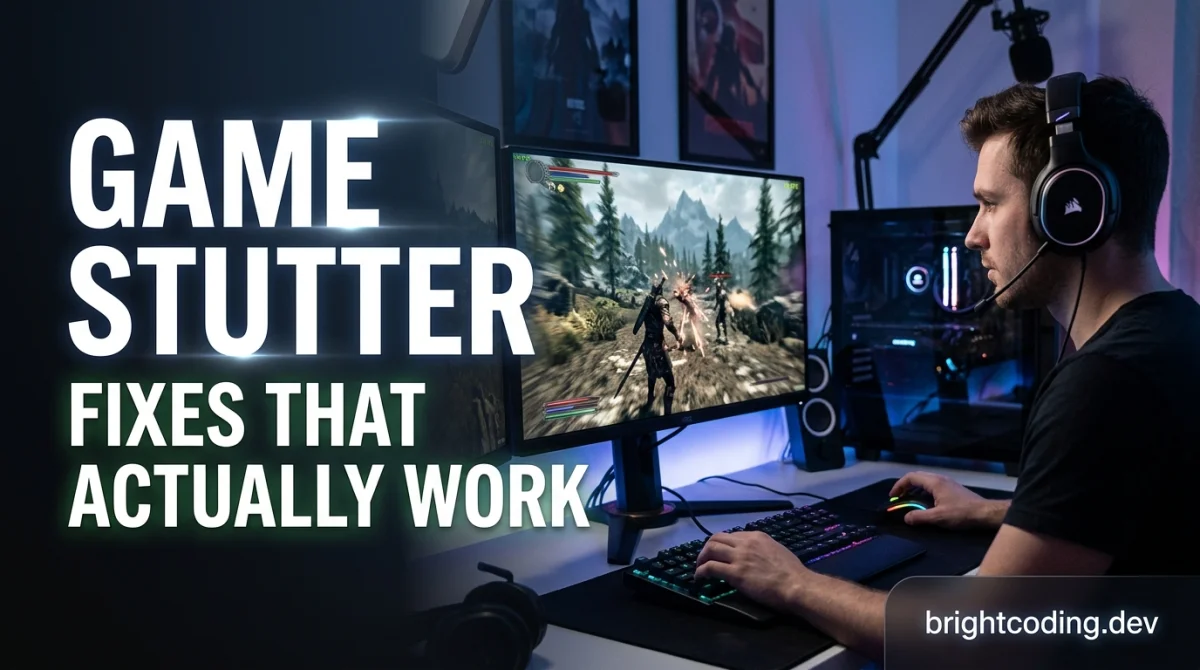
Your FPS counter says 140, but the game still hitches every few seconds like it is buffering a video. That is stutter, and it feels worse than low FPS because it breaks your rhythm mid-fight. The frustrating part is that stutter usually has nothing to do with your GPU's raw power. Most stutter comes from shader compilation, frame pacing, driver behavior, or background programs stealing CPU time. These game stutter fixes that actually work take about five minutes in the order below, and they solve the problem at the source instead of just lowering your graphics.
Quick answer: to fix game stutter, pre-build the shader cache, cap your FPS just under your stable average, disable overlays and background downloads, and update your GPU drivers. Do these in order and retest after each step. Stutter is a frame timing problem, not a graphics quality problem, so lowering preset sliders rarely fixes it.
Why Games Stutter: Two Completely Different Causes
Stutter has two distinct sources, and treating the wrong one wastes your whole afternoon.
The first is shader compilation. When a game loads a new effect or scene for the first time, your GPU builds a shader on the fly, and that build takes a visible frame or two. The second is frame pacing: even at high average FPS, uneven gaps between frames feel like hitches. That is why a game can run at 120 average FPS and still stutter constantly.
Run a frame time overlay (Ctrl+Shift+O in most games, or MSI Afterburner). A flat line with rare spikes means shader stutter. A chaotic, bouncing line means a frame pacing problem. That one observation tells you which fix you need.
Fix 1: Shader Cache, the Most Common Fix
Modern games like Call of Duty, Fortnite, and Apex Legends compile shaders on first launch. If you skip the "preparing shaders" screen, the game does that work during gameplay, causing the exact stutter you feel.
- Let the game finish its shader compilation screen at 100 percent.
- Play one full map or mission once per patch to warm the cache.
- In Nvidia Control Panel, set Shader Cache Size to 10 GB or Unlimited.
- On AMD, keep the shader cache enabled in Adrenalin.
After a warm cache, the same scene plays smoothly because the work is already done. If a patch resets the cache and stutter returns, that is normal; replay the first level and it clears.
Fix 2: Frame Pacing and the FPS Cap
If your graph shows a chaotic frame time line, the game is delivering frames unevenly. An FPS cap fixes this by telling the engine to wait, producing consistent intervals instead of bursts.
- Match the cap to your monitor: 141 on a 144Hz panel, or 3 to 5 below your stable average.
- Never cap above your refresh rate; that just queues frames and adds delay.
- Use the in-game cap when available, or RivaTuner if the game has no limiter.
Capping might lower your headline FPS by a few points, but the game will feel dramatically smoother. For the full math on why matching your refresh rate matters, our input lag guide explains the delay each unsynced frame adds.
V-sync fixes screen tearing but adds input lag and can cause stutter when FPS dips below your refresh rate. In fast games, turn V-sync off and use the cap above. In single-player games, enable V-sync with the cap set one frame below refresh rate, which stays smooth and tear-free.
Fix 3: Background Programs Stealing CPU Time
Stutter is often CPU starvation. Windows runs downloads, antivirus scans, updates, and game overlays at random moments, and each one steals the CPU threads the game needs.
- Close browsers before heavy games; a single tab can eat a full core.
- Pause Windows Update and Steam or Epic downloads during play.
- Turn off Discord, Steam, and Nvidia overlays, or disable their in-game injection.
- Set your game to High priority in Task Manager if it is CPU-bound.
If stutter always hits at random 30 to 60 second intervals, it is almost certainly a background task, not the game. Watch Task Manager during a spike and you will see the thief by name.
Fix 4: Driver and Rendering Settings
Outdated or recently-updated drivers can both cause stutter. Update to the latest Game Ready driver first, then, if stutter appeared after an update, clean-install it with a tool like Display Driver Uninstaller.
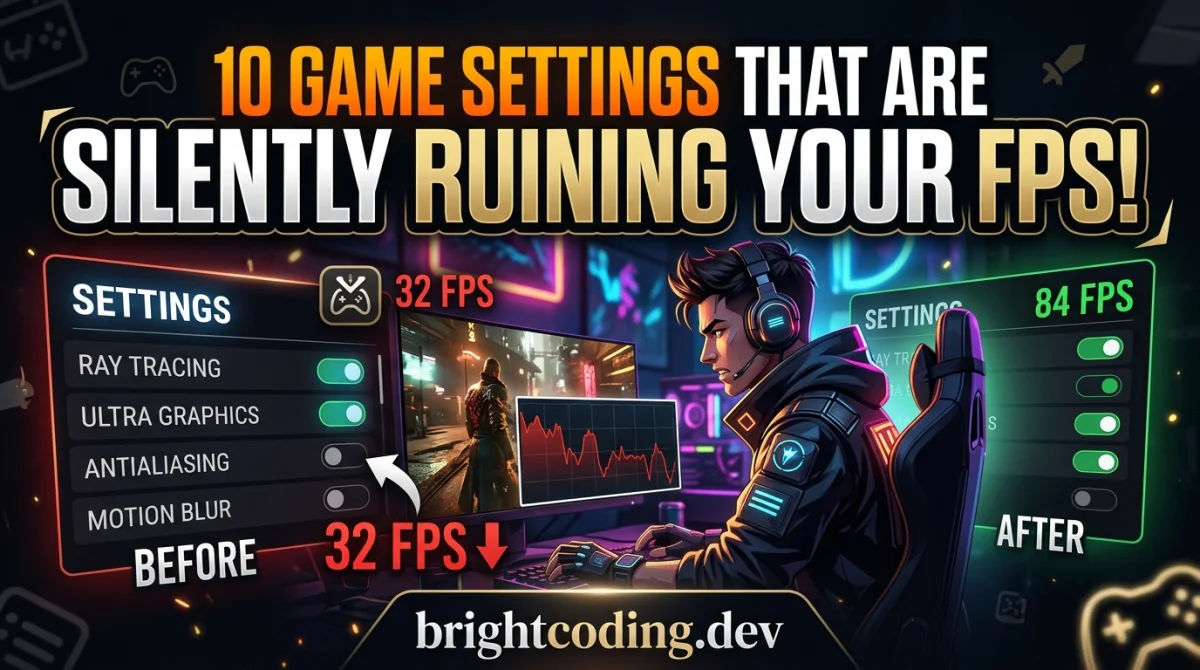
In the graphics settings, lower resolution scale and disable ray tracing before touching resolution. Ray tracing is a top stutter source on mid-range cards because each new scene triggers expensive calculations. For the exact sliders that matter, our guide on game settings that ruin FPS lists them by impact. In Nvidia Control Panel, set Power Management to Prefer Maximum Performance and Low Latency Mode to Ultra where supported; on AMD, keep Flip Queue Size at 1. These cut the render queue delay behind perceived stutter.
Fix 5: When It Is the Game, Not You
Some games stutter regardless of hardware because their engines fail at shader management or asset streaming. Many Unreal Engine titles have a well-known shader stutter issue, and open-world games stutter while streaming in new areas.
For asset streaming stutter, move the game to an NVMe SSD if you can, since loading from a slow drive is a common cause. If a game is known-bad, check the community settings thread, because a config edit almost always exists. And if stutter persists while your GPU sits idle, read up on why your GPU is not running at 100 percent before blaming your graphics card.
The 5-Minute Checklist
- Pre-build the shader cache and let compilation screens finish.
- Cap FPS 3 to 5 below your stable average.
- Close browsers and pause downloads and overlays.
- Update or clean-install your GPU driver.
- Drop ray tracing and resolution scale if stutter remains.
Run these in order, testing a few minutes after each step. Most players kill their stutter by step two, and almost everyone is fixed by step four.
Key Takeaways
- Stutter is a frame timing problem, not a graphics quality problem.
- Shader compilation is the number one cause, and a warm cache fixes it.
- Capping FPS slightly below your average smooths frame pacing.
- Background downloads, antivirus scans, and overlays steal CPU time.
- Ray tracing is a major stutter source on mid-range hardware.
- Some games stutter no matter what, and the fix is an SSD or a community config.
Frequently Asked Questions
Why does my high-end PC still stutter?
High-end PCs stutter when shaders compile on the fly or when background programs steal CPU threads. Raw power does not prevent stutter because stutter is about timing, not average FPS.
Does V-sync cause stutter?
V-sync can cause stutter when your FPS drops below your refresh rate, because it holds frames while waiting. Turning V-sync off and capping FPS below refresh rate is usually smoother.
Is stutter the same as low FPS?
No. Low FPS is a consistently low frame rate, while stutter is inconsistent timing even at high FPS. That is why a game can hit 140 FPS average and still hitch, and why capping can fix it.
Conclusion
Stutter is fixable in five minutes, but only if you treat the right cause. Pre-build your shader cache, cap your frames below your stable average, chase down the background program stealing CPU time, and update your drivers cleanly. Work through the checklist in order and you will find the source instead of blindly lowering settings that were never the problem.
Did one of these fixes cure your stutter? Tell us which one in the comments, share this guide with a friend who complains about hitching every night, and subscribe for more PC performance and settings fixes.
Ready to play?
Puzzle, arcade, 3D, word & sports games for every age — instant play, no registration.
Comments
No comments yet. Be the first to share your thoughts!