Why Your GPU Isn't Running at 100% (And How to Fix It)
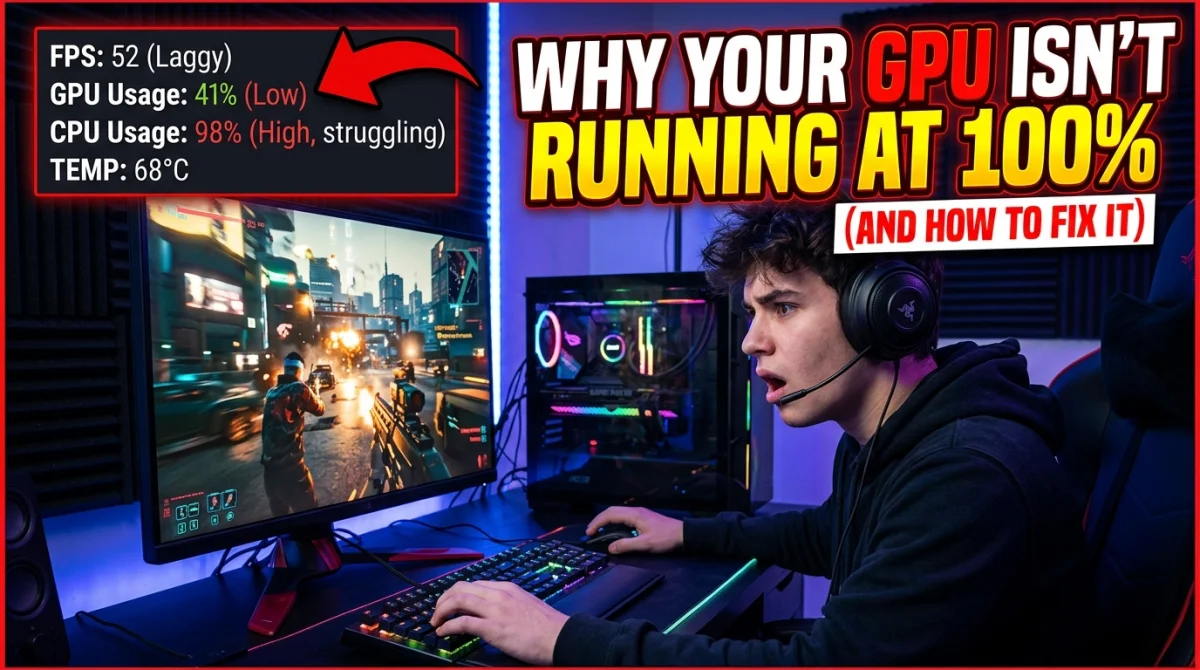
You open your performance overlay mid-game and the GPU sits at 60%, yet the frame rate is low and the game stutters. It seems impossible: how can your graphics card be bored while performance is bad? The answer is almost always a bottleneck somewhere else in the system. This guide walks through every reason a GPU runs below 100%, starting with the most common cause, a CPU or engine limit, and gives you the exact steps to test and fix each one. Most people resolve it in under ten minutes without touching the graphics card.
A GPU below 100% while performance is poor usually means a bottleneck: a weak CPU, a game that uses few cores, an FPS cap, thermal throttling, or a power limit. Diagnose with the resolution test: lower the resolution and if FPS barely changes, the CPU or engine is the limit, not the GPU. Then raise graphics settings so the GPU does more work, uncap FPS, and check temperatures and power limits.
Why Your GPU Is Not at 100%
Your GPU only works as hard as the game demands, and the game only demands as much as the rest of your system can feed it. If any other component holds the pipeline back, your GPU idles while FPS stays low. The usage number is a symptom, not the problem. You have to find the layer that is stalling.
The usual suspects, in order: the CPU, the game engine's core scaling, an FPS cap, thermal or power throttling, and settings that shift work away from the GPU.
The CPU Bottleneck: The Most Common Cause
A CPU bottleneck happens when your processor cannot prepare frames fast enough for the GPU to render. The GPU finishes its work early, usage drops, and FPS settles at the CPU's limit. It is especially common in strategy games, simulators, and games that are heavy on a few threads.
Signs of a CPU bottleneck:
- GPU usage stays low in crowded scenes and climbs when the screen is empty.
- Lowering resolution barely changes FPS.
- One or two CPU cores sit at 100% while others are idle.
- Frame times spike during big fights or heavy AI moments.
Games with hard frame caps or engine limits behave the same way. If the game will not use more than a few threads, no hardware change fixes it, and you just tune around it.
The Resolution Test: Diagnose in Two Minutes
This is the fastest way to find your bottleneck. Drop the resolution to the lowest option, keep all other settings, and watch the FPS counter:
- FPS barely changes: the GPU was not the limit, look at CPU, engine, cap, or thermals.
- FPS jumps significantly: the GPU was the bottleneck, and you have headroom to raise quality or resolution.
Run the test on the same scene, a busy area with lots of action. If FPS does not move even at the lowest resolution, the game or CPU is capping you, and no graphics setting will fix that. Our game stutter fixes cover the frame-time side when FPS drops appear at random.
Raise Settings, Uncap FPS, and Let the GPU Work
If the GPU has headroom, give it more work:
- Raise graphics quality. Resolution, shadows, reflections, and effects scale with the GPU. If it sits at 80%, pushing quality can hit 95-100% without losing FPS.
- Uncap the frame rate. A 60 FPS cap on a 165 Hz monitor leaves a high-end card at 40% usage. Uncapping lets the GPU stretch its legs, or cap at a value above your monitor's refresh.
- Check the 1% lows. If average FPS is fine but it stutters, the GPU is not the story; settings that are silently ruining your FPS and driver issues often are.
On low-end systems the math is different, and our best settings for low-end PCs show how to keep the GPU busy within your budget.
Other Causes: FPS Caps, Drivers, Power, and Thermals
- FPS caps: any cap below what the GPU can produce limits usage by design. Only cap for stability or to match variable refresh.
- Driver or game issues: an old driver, corrupted shader cache, or a broken game update can drop GPU usage and FPS together.
- Thermal throttling: if the GPU hits its temperature ceiling, it clocks down and usage numbers drop. Check temps with your overlay; mid-80s Celsius under load is a warning zone.
- Power limits: laptops and some GPUs cap power, which throttles clocks. Play plugged in, enable a performance power plan, and raise the power limit if your card allows it.
- Background apps: overlays, browsers, and recording software steal CPU time and can drag the pipeline down.
When Low GPU Usage Is Actually Fine
A GPU below 100% is not always a problem. Light games, menu screens, and anything capped to 60 FPS on a modest panel do not need full load. Even in competitive titles, capping FPS deliberately to stabilize frame times keeps the GPU at 70-80% on purpose. That is a choice, not a fault.
The real signal is low GPU usage combined with low or inconsistent FPS. If the GPU idles and your frame rate is bad, fix it. If the GPU idles and FPS is exactly where you want it, enjoy it. For a broader pass at the whole pipeline, our optimize your PC or console guide covers refresh matching, drivers, and cooling in one place.
The 5-Step Fix Checklist
- Run the resolution test to find the bottleneck.
- If CPU-bound, close background apps and reduce simulation-heavy settings.
- Raise graphics quality to hand the GPU more work.
- Uncap FPS or cap above your refresh rate for variable refresh.
- Check temperatures, power limits, drivers, and shader caches.
Key Takeaways
- Low GPU usage with bad FPS always means a bottleneck somewhere upstream.
- The resolution test tells you in two minutes if the GPU is the limit.
- CPU limits, FPS caps, thermals, and power limits are the usual causes.
- Raise quality and uncap FPS to use idle GPU headroom.
- Sometimes low usage is fine, only fix it when FPS suffers too.
Frequently Asked Questions
Is my GPU supposed to be at 100% while gaming?
Ideally yes in demanding games, a 95-100% GPU usually means it is being fully fed. Lower usage is only a problem when frame rate or frame times are bad at the same time.
Why is my GPU at 40% and FPS low?
A bottleneck elsewhere, most often the CPU or an FPS cap. Run the resolution test: if lowering resolution does not raise FPS, the GPU is not the limiter.
Can I fix a CPU bottleneck?
Partially. Close background apps, lower CPU-heavy settings like physics, shadows, and draw distance, and overclock or upgrade the CPU. Some games simply refuse to use more cores, and then you tune around the limit.
Should I uncap my FPS?
If your GPU has headroom and your monitor is high refresh, yes, or cap above your refresh rate for variable refresh. Uncap, measure the temps and frame times, then decide.
Conclusion
A GPU that idles while your game struggles is a clue, not a curse. Run the two-minute resolution test to find the bottleneck, then feed the GPU more work, uncap the frame rate, and check thermals, power, and drivers. In most cases you can reclaim the lost performance in an afternoon, and sometimes the fix is simply knowing the game will never use more. Measure, adjust, and the usage number will finally make sense.
Have you fixed a bottleneck with these steps? Tell us what your culprit was in the comments, share this guide with a friend whose GPU is still confused, and subscribe for more performance fixes.
Ready to play?
Puzzle, arcade, 3D, word & sports games for every age — instant play, no registration.
Comments
No comments yet. Be the first to share your thoughts!