Best Settings for Low-End PCs: Play Any Game Without Lag
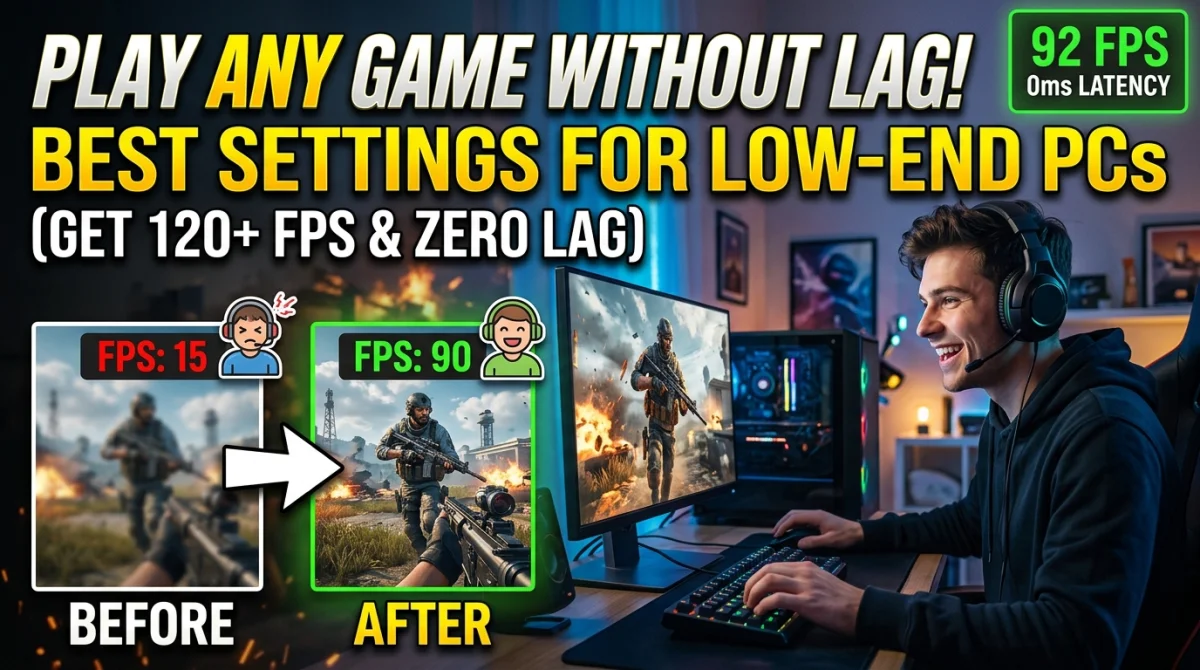
Your gaming laptop was never a gaming laptop, but that does not mean you have to play at 12 FPS. Low-end PCs lose most of their performance to lazy defaults, not to weak hardware. Games enable expensive effects, render at full resolution, and cap frames badly, all fixable in the settings menu. The goal is simple: keep the information you need and strip everything that eats frames. This guide covers the preset order, resolution tricks, and free tools that make old hardware playable.
Quick answer: the best settings for low-end PCs are the Low or Performance preset with resolution scale at 70 to 85 percent, shadows on Low, reflections off, and volumetric effects off. Enable FSR or DLSS if available, cap FPS to your screen's refresh rate, and close background apps. Test each change and keep whatever makes the game feel smooth.
The Golden Rule: Pick a Preset, Then Adjust
Never touch individual sliders first. Graphics presets are tuned by developers, and on weak PCs the Low preset often looks surprisingly good because modern upscaling does the heavy lifting.
- Start on Low or Performance, not Medium.
- Play one level with that preset and note the FPS.
- Move each setting up one step at a time, retesting after every change.
- Stop at the first setting that drops you below your target frame rate.
The preset order from cheapest to most expensive is usually: Performance, Low, Medium, High, Ultra, Epic. On a low-end PC, Low is your friend; the gap between Low and Medium is far smaller than between Medium and Ultra.
Resolution Scaling Is Your Best Friend
This is the single biggest lever on a weak PC. Lowering the internal resolution by 15 to 30 percent gives you a massive FPS boost while looking nearly identical on most screens.
- Set resolution scale to 70 to 85 percent as a starting point.
- Pair it with upscaling: FSR 1.0 in most games, FSR 2/3 or DLSS in newer titles.
- Avoid native 100 percent unless you already hit your target FPS.
- Never use a resolution scale below 50 percent; the image collapses.
Modern upscaling is why a Low preset can look sharp. FSR reconstructs the low-resolution image into a near-native picture, so you get 50 percent more FPS for maybe 10 percent visual loss.
What to Do If Upscaling Is Missing
Older games and some indies skip FSR and DLSS entirely. Drop the resolution in Windows or use the game's own options instead. Playing at 1280x720 on a 1080p screen beats stuttering at 900p, and most games look fine once motion starts.
The Only Graphics Settings That Matter on Weak PCs
When you must choose where the frames come from, always sacrifice these first:
| Setting | Setting it to Low saves | Do not touch |
|---|---|---|
| Shadows | 20 to 40 percent in many games | Resolution scale below 70 |
| Reflections | 10 to 25 percent in cities | Anisotropic filtering (keep 4x) |
| Volumetric fog | 10 to 30 percent outdoors | Texture quality (keep Low) |
| Anti-aliasing | 5 to 15 percent | Nothing else matters much |
Shadows go first: Low keeps the important ground contact shadows while removing expensive soft edges. Reflections and volumetric fog follow. Anti-aliasing can go to Off or FXAA, since lower resolutions hide jaggies anyway.
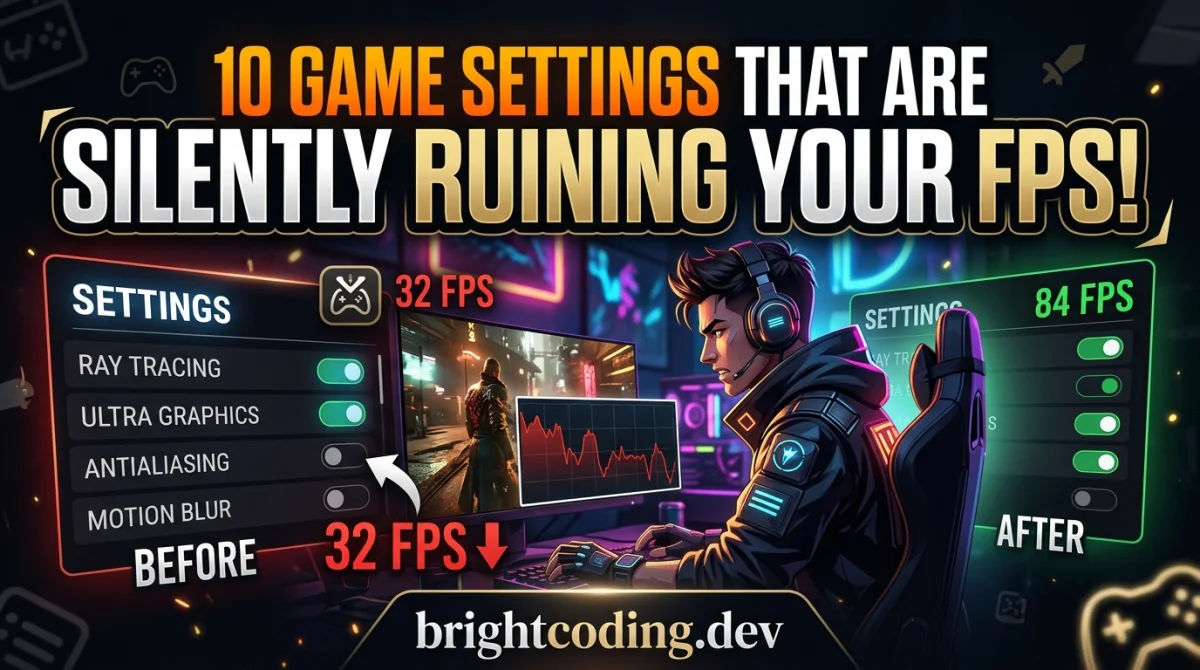
Keep anisotropic filtering at 4x or 8x. It is nearly free and stops textures looking blurry at angles, one of the biggest visual downgrades players notice. Our guide on settings that silently ruin FPS covers the full list if you want every slider explained.
Two Free Tools That Can Double Your FPS
Software matters as much as sliders on a weak PC.
- MSI Afterburner: not just an overlay. Use it to undervolt your GPU, which lowers temperature and lets the card boost higher for longer before throttling.
- RivaTuner Statistics Server: the best frame limiter. Capping slightly below your average stops the GPU from overheating, which causes the throttling dips that feel like lag.
Also enable any low-latency mode in the game or driver (Nvidia Reflex or AMD Anti-Lag). On a low-end card, cutting render queue delay makes the game feel more responsive even at 45 FPS. If your frame timing still feels uneven, our 5-minute game stutter fix guide walks through the causes that are not hardware-related.
Clean Up the Operating System for Free FPS
Windows itself is often the biggest FPS thief on a weak laptop. A few minutes of cleanup recovers more performance than any graphics preset:
- Disable Xbox Game Bar and Game DVR.
- Turn off startup programs you do not use; every one steals RAM.
- Set the power plan to High Performance, not Balanced.
- Keep at least 15 percent of your disk free; full drives stutter.
- Close a browser before gaming; each tab can cost 1 to 3 FPS.
Laptops need extra care. Set the battery to Best Performance, plug in while gaming, and clean the vents. A throttling CPU is the number one reason "new" low-end laptops suddenly play worse than before. For the full hardware and software checklist, read our PC and console optimization guide.
What Frame Rate Should You Target?
Drop the "I need 144 FPS" mindset. On a low-end PC, the targets are different:
- 60 FPS: great for single-player games and most shooters on Low.
- 45 FPS: fine for story games with a controller.
- 30 FPS: perfectly playable for turn-based, strategy, and slower titles.
The enemy is inconsistent FPS, not low FPS. A locked 45 feels smoother than a bouncing 45 to 70, so cap at the highest value you can hold reliably.
Games That Run on Almost Anything
If a modern game still struggles at Low with upscaling, play games designed for weak hardware. Esports titles like Valorant, CS2, and Rocket League scale down beautifully, and indies like Hollow Knight and Stardew Valley run on integrated graphics. No need to sit out the hobby just because your PC is old.
Key Takeaways
- Start on the Low or Performance preset and raise one setting at a time.
- Resolution scale at 70 to 85 percent plus FSR or DLSS is the biggest FPS lever.
- Sacrifice shadows, reflections, and volumetric effects first.
- Keep anisotropic filtering at 4x, it is nearly free.
- Undervolt with MSI Afterburner and cap FPS with RivaTuner to stop throttling.
- Target a locked 45 or 30 FPS instead of an unstable 60.
Frequently Asked Questions
Can a low-end PC run modern games?
Yes, at Low settings with resolution scaling and upscaling. Most modern games become playable at 30 to 60 FPS on hardware a few generations old, and esports titles run well on almost anything.
Is 30 FPS playable?
Yes, for slower games and with a controller. For shooters, aim for at least 45 to 60 FPS, but a locked 30 with consistent frame timing beats an unstable 45.
Is the CPU or GPU more important on a low-end PC?
Both matter, but weak laptops usually throttle the CPU first. Keeping the machine cool, plugged in, and on a High Performance power plan protects the CPU, which matters most for consistency.
Conclusion
A weak PC does not need a weak experience. Use the Low preset, scale your resolution, enable upscaling, sacrifice shadows and reflections, and clean up Windows so nothing steals your frames. Then target a frame rate you can hold, not one you cannot. Old hardware with smart settings beats new hardware with terrible defaults.
What is the weakest PC you have gamed on, and what game did you get running smoothly? Share your story in the comments, pass this guide to a friend stuck on a school laptop, and subscribe for more performance and settings tips.
Ready to play?
Puzzle, arcade, 3D, word & sports games for every age — instant play, no registration.
Comments
No comments yet. Be the first to share your thoughts!