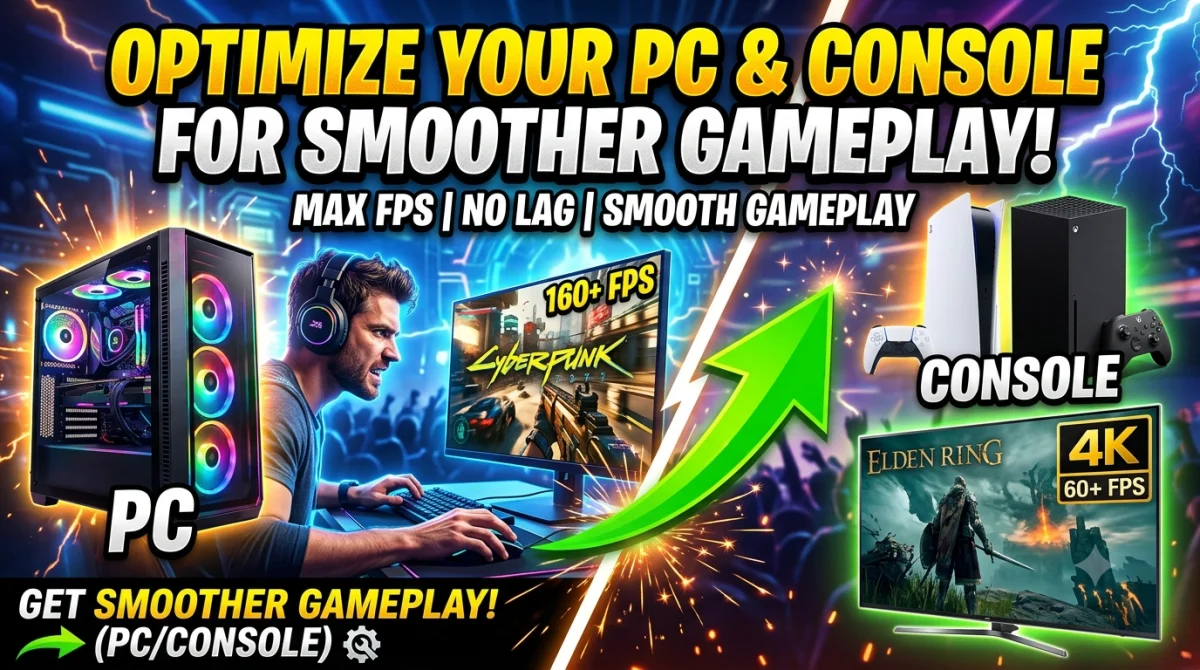
How to Optimize Your PC or Console for Smoother Gameplay
Keep reading: Top 10 Settings Every New Player Should Change First, Best Controller and Keyboard Settings for Faster Reactions, Cross-Platform Play in 2026 and the Games That Support It, and Console Wars Update: Sales, Exclusives, and Reactions.
Your game looks fine, but it doesn't feel fine. Inputs lag, the camera stutters, and frame drops hit exactly when you need to clutch. Here's the secret: most of that isn't the game's fault. You can optimize your PC or console for smoother gameplay in an afternoon, often with free settings, and the difference is night and day. This guide walks you through the fixes that matter most frame rate and refresh rate matching, graphics presets, Game Mode, cooling, and the FPS counters that tell you what's actually wrong. No exotic hardware required. Just smarter settings and a few minutes of your time.
The single highest-impact change for smoother gameplay is matching your frame rate to your display's refresh rate cap to 60 FPS on a 60Hz screen or enable a variable refresh rate feature like G-Sync or FreeSync. On PC, update GPU drivers and close background apps; on console, turn on Game Mode on your TV, pick performance mode in-game, and keep the console ventilated. Measure with an FPS counter before and after every change.
Frame Rate and Refresh Rate: Know Your Target
Frame rate (FPS) is how many frames your game renders per second; refresh rate (Hz) is how many times your screen redraws per second. When they don't match, you get screen tearing a visible split in the image. Two ways to fix it:
- Cap the frame rate to your display's refresh rate (or a whole multiple of it) in-game or in your GPU driver.
- Enable VRR (variable refresh rate) G-Sync on NVIDIA hardware, FreeSync on AMD which syncs the screen to your frames in real time. Check whether your monitor and GPU support it.
A stable 60 FPS on a 60Hz screen will feel smoother than a fluctuating 90-140 FPS on the same panel, because drops are what you notice not averages.
PC Optimization: Drivers, Settings, and Cleanup
On PC, performance problems usually come from three places: drivers, background apps, and settings.
- Update your GPU drivers. New drivers are tuned for new games and fix performance bugs. Use your GPU vendor's official software.
- Close background apps. Browsers, streaming software, and launchers eat CPU and RAM. Check Task Manager and close what you don't need.
- Tweak settings one by one. Shadows, volumetric fog, and reflections cost the most FPS. Lowering them a notch rarely changes how the game looks.
A good PC rule of thumb: set the quality preset one step below what your hardware can run. You'll trade a few pixels for a lot of consistency.
Console Optimization: Game Mode, Resolution, and Airflow
Consoles are fixed hardware, so the wins come from settings and environment:
- Enable Game Mode on your TV. It disables the post-processing that adds input lag. Most TVs hide it in the picture or input menu.
- Choose performance mode in games. Many titles offer fidelity/quality and performance presets performance targets a higher, steadier frame rate at lower resolution.
- Use a wired or 5GHz connection for online play to cut latency.
- Give the console room to breathe. Poor airflow causes thermal throttling, where heat forces the hardware to slow itself down mid-match.
A quick TV check: if your display is a 60Hz panel and the game's performance mode targets 60 FPS, that combination usually beats 4K fidelity mode for feel.
The Hidden Bottlenecks: Cooling, Power, and Storage
Even with perfect settings, one weak component drags everything down the bottleneck. Common ones:
- Thermal throttling: dust and bad airflow slow your CPU or GPU under load. Cleaning vents and improving case airflow restores lost performance.
- Power delivery: on laptops, high-performance power plans and playing while plugged in can matter more than the specs.
- Storage speed: games on a slow hard drive cause pop-in and stutter. Solid-state drives (SSDs) load textures and levels far faster.
The fastest way to find your bottleneck is to watch an FPS counter while CPU and GPU usage are displayed the component pegged at 100% is your limiting factor.
Measure Before You Tweak: Use an FPS Counter
Never change settings blind. Turn on an FPS and frame-time counter first:
| Tool | Where to find it |
|---|---|
| In-game overlay | Most games have a built-in FPS counter |
| GPU software | NVIDIA and AMD apps include performance overlays |
| Steam overlay | Settings → In-game → FPS counter |
| Frame-time graphs | Shows the 1% and 0.1% low FPS to catch stutters |
Frame times matter more than average FPS: consistent pacing feels smooth even at lower numbers. Watch for 1% lows the worst-percent frames when a game stutters despite a high average.
The Fast Optimization Checklist
- Update your GPU drivers and restart.
- Close background apps before a session.
- Match FPS to refresh rate or enable VRR.
- Enable Game Mode on your TV (consoles).
- Lower shadows, reflections, and fog on PC.
- Clean vents, check airflow, and prefer SSD storage.
- Measure with an FPS counter before and after each change.
Key Takeaways
- Smoothness is consistency: stable FPS beats a high, fluctuating average.
- Match frame rate to refresh rate, or enable VRR to kill tearing and stutter.
- On PC, drivers and background apps are the most common culprits.
- On console, Game Mode plus performance mode beats fidelity settings.
- Measure every change with an FPS counter and check your 1% lows.
Frequently Asked Questions
Which graphics setting gives the biggest FPS boost?
Shadow quality and volumetric effects usually cost the most frames for the least visual payoff. Drop them one or two steps and test with an FPS counter most games look nearly identical and run visibly smoother.
Does TV Game Mode actually help?
Yes. Game Mode disables the TV's post-processing that adds input lag, so your button presses register faster on screen. It's one of the most effective free fixes for console players.
My FPS is high but the game still stutters. Why?
High average FPS can hide frame-time spikes. Watch your 1% and 0.1% lows sudden dips there cause stutters. Fixes include VRR, capping your frame rate, closing background apps, and moving the game to an SSD.
Should I cap my frame rate?
If you're getting screen tearing or frame-time spikes, yes. Cap to your display's refresh rate (or enable VRR) for a stable image. On a high-refresh monitor, set the cap high enough that you rarely hit it.
Performance mode or quality mode on console?
Performance mode, almost always. A steadier 60 FPS target with lower resolution feels dramatically smoother than 30 FPS with prettier pixels especially in fast, competitive games.
Conclusion
Smoother gameplay rarely needs new hardware it needs the right settings, the right numbers, and a little troubleshooting. Match your frame rate to your screen, update your drivers, let your machine breathe, and measure every change with an FPS counter. Ten minutes of tweaking can make the same game feel like a different one. Try one fix at a time, and you'll build a setup that holds steady when it counts.
Which single setting change gave you the biggest FPS jump and on what game? Tell us in the comments, pass this guide to your squad before your next ranked night, and subscribe so you get every optimization trick we publish.
Ready to play?
Puzzle, arcade, 3D, word & sports games for every age — instant play, no registration.
Comments
No comments yet. Be the first to share your thoughts!