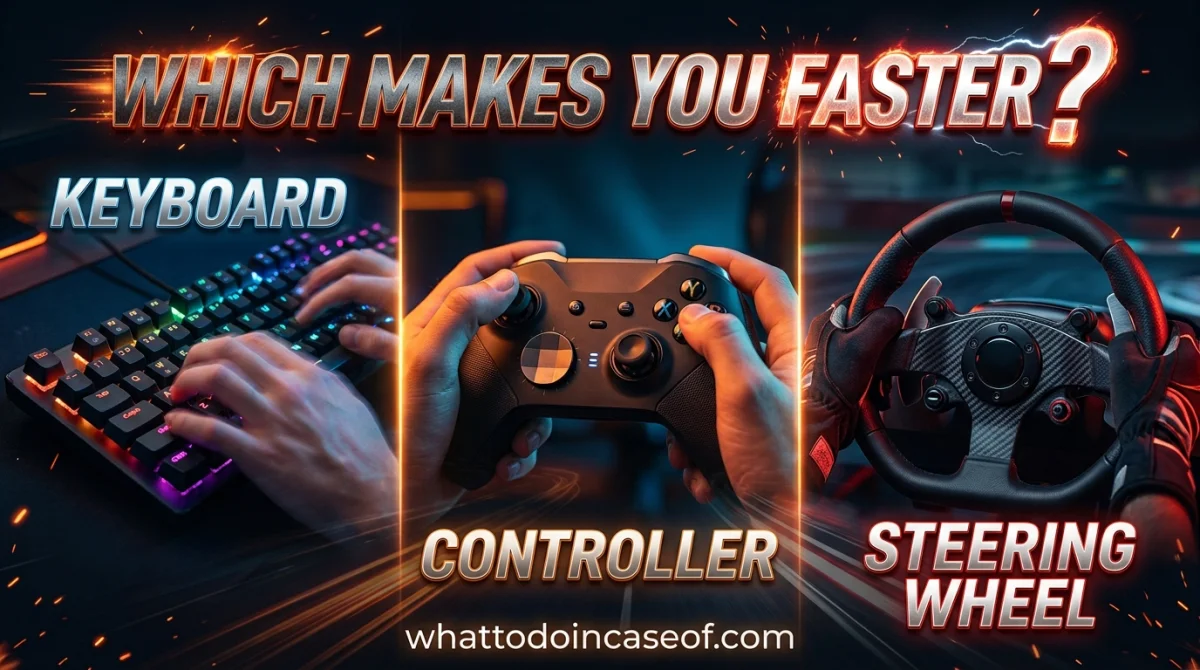
Best Controller and Keyboard Settings for Faster Reactions

Keep reading: Top 10 Settings Every New Player Should Change First, How to Optimize Your PC or Console for Smoother Gameplay, Fighting Games 101 Terms Every New Player Should Know, and Best Anime Fighting Games Every Fan Should Play.
Your reaction speed is better than you think your settings are what's slowing you down. Between your press and the on-screen result sits a chain of devices and software, and each link can add delay. This guide covers the best controller and keyboard settings for faster reactions: sensitivity and DPI, controller dead zones, polling rates, latency modes, and the habits that shave real milliseconds off every input. Some are in-game menus, some are hardware settings, and all of them are free or nearly free. Tune these, and your aim will feel snappier by the end of the day.
Quick answer: the best settings for faster reactions are a sensitivity you can control without overshooting, tightened controller dead zones, low-latency modes like Nvidia Reflex or AMD Anti-Lag switched on, and an FPS held above your monitor's refresh rate. Use a wired mouse or controller with a high polling rate, disable vibration, and keep keybinds within easy reach. Together these cut input lag and tighten every flick, turn, and trigger pull.
Mouse Sensitivity and DPI: Control Over Speed
DPI (dots per inch) is the hardware resolution of your mouse sensor; in-game sensitivity multiplies it. Higher isn't better in a good way it's just harder to control. Most pros run low DPI (around 400-800) with moderate in-game sensitivity so their wrist makes large, smooth motions instead of nervous twitches. The real test: land on a small target, flick away, then flick back. If you overshoot or undershoot, adjust until you stop that's your value.
Finding Your Sensitivity Fast
- Start from a low base and raise sensitivity until you can turn 180 degrees comfortably on one mousepad sweep.
- Play one full practice session without changing it.
- Adjust in small steps 0.5% to 2% at a time only when you miss consistently.
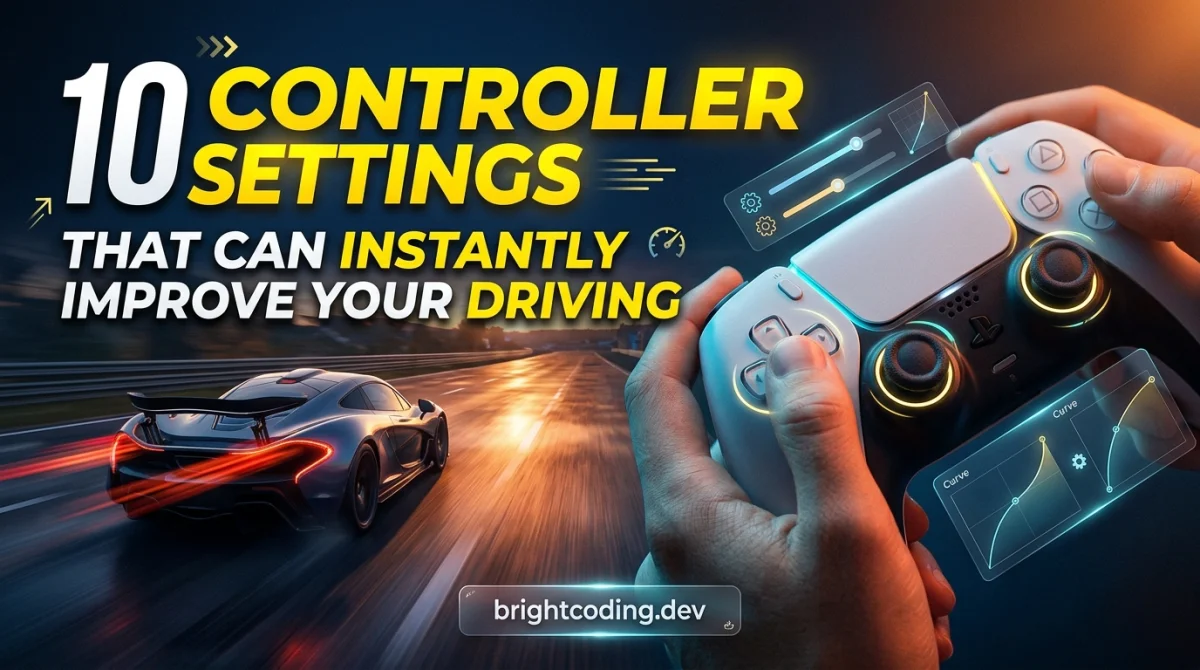
Controller Stick Sensitivity, Dead Zones, and Response Curves
Controller aiming feels different because sticks are analog they report direction and intensity. Three settings control how that feels:
- Stick sensitivity raises how far the aim moves per unit of tilt.
- The dead zone is the area where the stick ignores input; a too-large dead zone means your fine corrections never register, and a too-small one causes drift. Tighten it until drift just disappears.
- Response curves change how the stick accelerates. A linear curve gives 1:1 input, while exponential curves soften small movements for precision. Most reaction-focused players prefer linear or a mild curve. Game and platform support varies.
Aim assist is your friend on controller keep it on, and if the game offers a choice like "stick to target" versus "stop on target," test both and keep the one that doesn't fight your micro-adjustments.
Polling Rate: How Often Inputs Reach Your PC
The polling rate is how often your input device reports its position to your PC, measured in hertz. A 125 Hz mouse reports about 8 times a second; a 1,000 Hz mouse reports every millisecond. Higher polling rates mean your aim updates more frequently, which shows up as smoother, more responsive tracking. Check your mouse's software or driver settings and set it to the maximum supported polling rate. Controllers typically run at 125 Hz, with higher-rate controllers costing more. For reactions, wired beats wireless for both mice and controllers, since wireless adds a small but real round-trip.
Keybinds and Hand Placement for Instant Responses
Your inputs are only as fast as your fingers can reach the keys. The classic competitive layout keeps movement on WASD and rebinds important actions to E, Q, Shift, Space, and mouse buttons never a stretch like P or the number row for panic actions. On controller, map your most-used actions to the bumper and trigger buttons (LT, RT, LB, RB) instead of face buttons, since your index and middle fingers sit on the bumpers already. Practice new binds in a training mode until they're automatic muscle memory takes roughly a week of play.
Software Latency: Reflex, Anti-Lag, and Frame Rate
The biggest reaction killer on modern systems is render latency the delay while your GPU queues frames. Several tools exist to shrink it:
- Nvidia Reflex and AMD Anti-Lag reduce the render queue in supported games, cutting latency by several milliseconds.
- High, stable FPS matters more than max settings. Dropping shadows or resolution scaling keeps frames above your monitor's refresh rate, which directly reduces the time between input and display.
- Turn V-sync off it's the single most common source of added input lag in competitive play.
If a game has a built-in latency or frame-time display (like an FPS graph), turn it on and watch what changes as you adjust settings.
Hardware Habits That Reduce Latency
Outside the menus, a few physical habits cut reaction time:
- Play on a low-latency monitor and check its refresh rate; 144 Hz or higher is the competitive standard.
- Keep input devices wired and free of interference.
- Put the monitor close and at eye level so you don't lose milliseconds tracking screen edges.
- Disable vibration and force feedback where the option exists physical feedback is nice, but it's added delay on controller.
Test Your Settings With a Reaction Routine
Settings without testing are just vibes. Build a 10-minute check after any change:
- Warm up with tracking drills follow a moving target.
- Run a flick drill snap between two points.
- Do ten seconds of reaction-target drills.
- Compare your times and misses to before the change.
If your scores improve, keep the setting; if they don't, revert. Data beats feelings when tuning reactions.
Key Takeaways
- Sensitivity and DPI are personal tune for control, not for pro videos.
- Controller players: tighten dead zones, prefer a linear response, keep aim assist, kill vibration.
- Higher polling rates and wired connections reduce input-to-action delay.
- Reflex or Anti-Lag, V-sync off, and high stable FPS are the three software latency wins.
- Test every change with a reaction routine; data beats feelings.
Frequently Asked Questions
What is the best controller setting for faster reactions?
Tighten the dead zone until drift just disappears, use a linear or mild response curve, disable vibration, and keep aim assist on. Then test in the practice range small adjustments beat big swings.
Does a higher mouse polling rate improve reaction time?
Yes, up to a point. A 1,000 Hz polling rate reports input every millisecond versus roughly every 8 ms at 125 Hz, which feels noticeably smoother and slightly more responsive in fast games.
Do I need to change my settings for every game?
Settings transfer as templates, not exact values. Sensitivity, dead zone, and latency options should be tuned per game, but your polling rate, wired connection, and monitor setup carry over everywhere.
How do I reduce input lag in games?
Turn V-sync off, enable Nvidia Reflex or AMD Anti-Lag if supported, hold a high stable frame rate, use a wired device with a high polling rate, and avoid capping FPS below your monitor's refresh rate.
Conclusion
Faster reactions aren't a talent gift they're a setup choice. The best controller and keyboard settings for faster reactions live in menus you already have: tune sensitivity and dead zones, raise your polling rate, cut latency with Reflex or Anti-Lag, and test every change against your own numbers. Do that, and your inputs will feel sharper tonight.
Which setting gave you the biggest reaction-time jump sensitivity, dead zone, or something else? Drop it in the comments below. If this guide helped, share it with your guild or Discord, and follow along for more settings deep-dives and competitive tips.
Ready to play?
Puzzle, arcade, 3D, word & sports games for every age — instant play, no registration.
Comments
No comments yet. Be the first to share your thoughts!