Top 10 Settings Every New Player Should Change First

Keep reading: Best Controller and Keyboard Settings for Faster Reactions, How to Optimize Your PC or Console for Smoother Gameplay, Cross-Platform Play in 2026 and the Games That Support It, and What Is a Soulslike? Key Traits That Define the Genre.
Just installed a new game and the defaults feel... wrong? You're not imagining it. Most titles ship with conservative, marketing-friendly settings that bury visibility, add input lag, and fight your reflexes. The top 10 settings every new player should change first fix all of that in under ten minutes no mods, no grinding, no skill required. Whether you're on PC or console, these tweaks improve aim, awareness, and comfort from your very first match. This guide walks through each one, explains why it matters, and covers both keyboard and controller setups.
Quick answer: the settings every new player should change are mouse or stick sensitivity, field of view, crosshair style and color, HUD scale, motion blur off, V-sync off, an FPS cap matched to your monitor, a footsteps-up audio mix, reachable keybinds, and controller dead zones plus vibration off. Most take seconds, cost nothing, and improve aim, awareness, and comfort immediately.
Sensitivity and Field of View: The Settings That Change Everything
Sensitivity controls how far your view or aim travels per input, and it's the first thing most new players get wrong. Too high and you overshoot every flick; too low and you can't turn fast enough. A common starting point is to lower your mouse DPI dots per inch, the mouse's hardware resolution to around 800 and tune the in-game sensitivity from there, but the real test is control: you should track a moving target without constant micro-corrections. ideal values vary by game and personal preference.
Field of view (FOV) is how wide your view is. A higher FOV shows more of your surroundings, so enemies approaching from the sides appear on screen earlier but targets get smaller. Most competitive shooters let you raise FOV toward 90-110; start near the top of the supported range and lower it if distant targets feel tiny. supported FOV ranges differ per title.
Crosshair and HUD: Clarity Is a Competitive Edge
Your crosshair should be visible against any background. Use a high-contrast color like bright green or magenta (avoid the map's dominant palette), and many games let you add a black outline for extra contrast. Thicker isn't better a tight, bright crosshair with a small gap keeps you accurate without covering the target. crosshair customization options vary by game.
Scale down your HUD where the game allows. Big minimaps, huge ability icons, and chat spam can cover half the screen, and the less clutter between your eyes and the action, the faster you spot threats. In games with HUD opacity or size sliders, set them just high enough to read at a glance.
Turn Off the Visual Filters That Hide Information
Motion blur smears everything while you swing your camera, hiding enemies mid-sweep. Camera shake sells impact but destroys clarity during gunfights and boss fights. Film grain and vignette add atmosphere but darken the edges of your screen exactly where flankers approach. Turn these all off for a cleaner, sharper image. In competitive play, clarity beats cinematic flair every time.
Cut Input Lag and Boost FPS
Input lag is the delay between your press and the action on screen, and several settings add it without you noticing.
- V-sync synchronizes your frames with the monitor to stop screen tearing, but it adds noticeable input lag. Turn it off in fast games.
- Cap your FPS at or slightly above your monitor's refresh rate. Capping avoids wasted heat and power while keeping frame timing consistent.
- Low-latency modes like Nvidia Reflex and AMD Anti-Lag cut rendering-queue delays and are worth enabling where supported.
- On an older PC, lower resolution scaling or shadow quality first FPS improves aim tracking more than any other visual setting.
Audio Mix: Footsteps Are a Weapon
Sound design in modern shooters is positional: footsteps, reloads, and ability sounds tell you exactly where enemies are if you can hear them. Open the audio settings and raise effects or footsteps while lowering music and ambient noise. Some games even offer a "boost footsteps" or night-mode toggle. game-specific audio presets vary. A high-clarity headset and a mix that separates footsteps from music will sharpen your positioning in every match.
Keybinds and Controller Tuning: Make the Controls Fit Your Hands
Keyboard: Reach Trumps Style
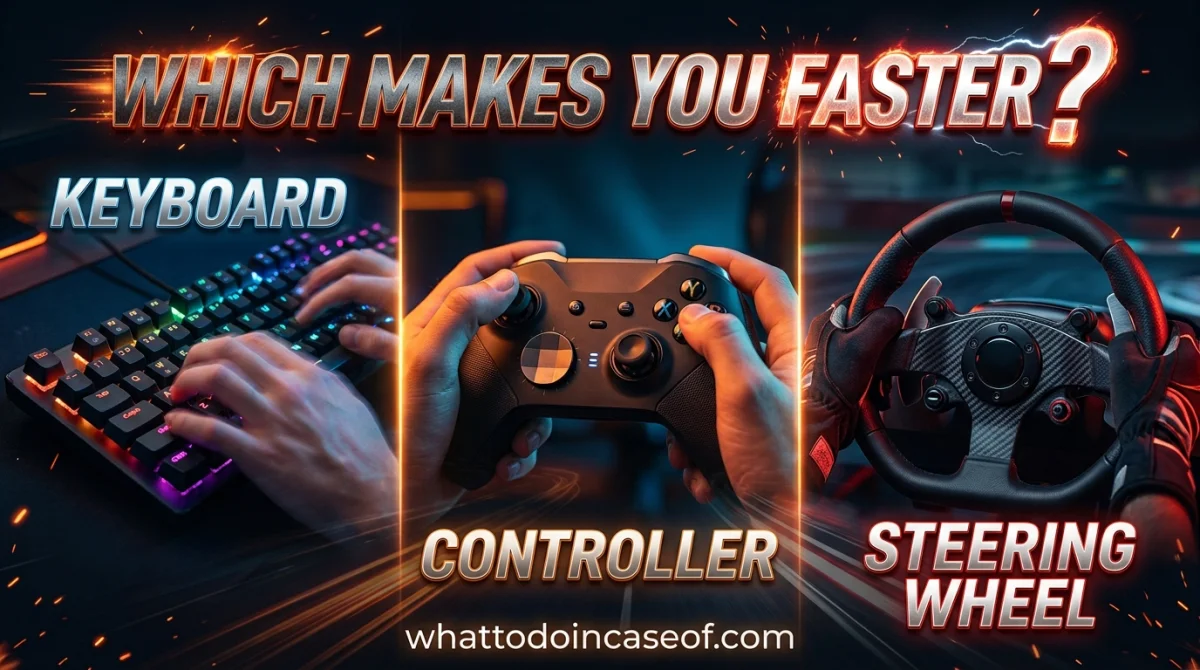
The fastest keybinds are the ones your fingers can hit without leaving their home position. Rebind rarely-used actions (scoreboard, emotes, push-to-talk) away from movement keys, and move critical abilities to E, Q, or side mouse buttons if the default layout asks you to stretch. Test every bind in a practice mode before jumping into ranked.
Controller: Dead Zones and Vibration
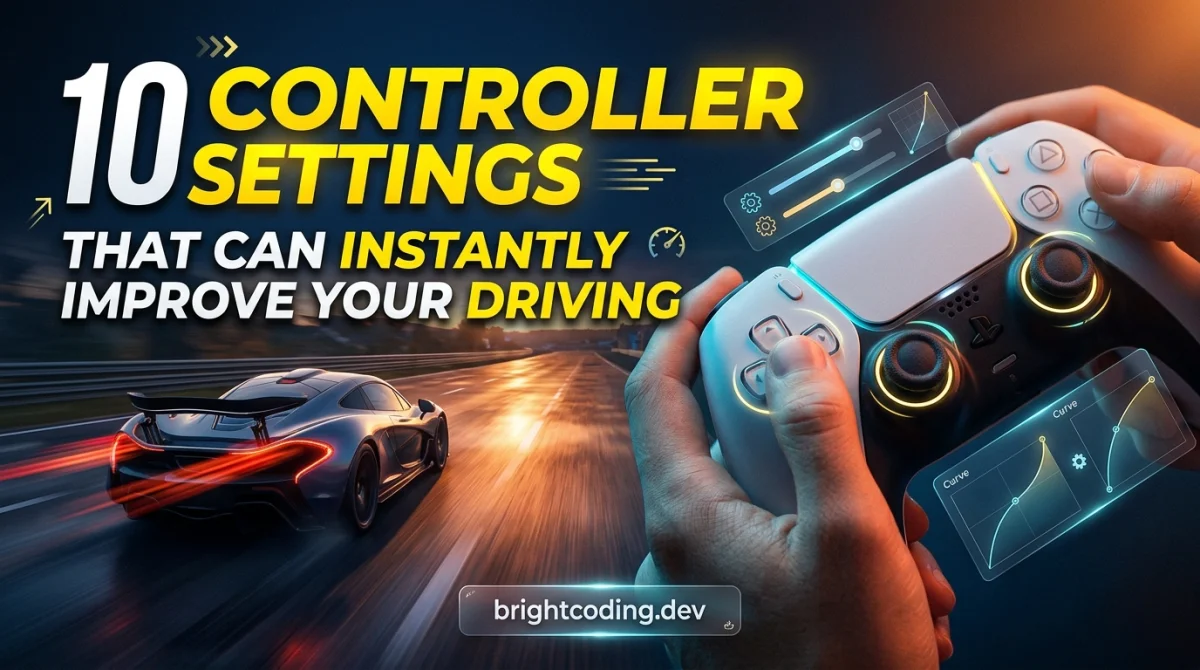
A dead zone is the tiny area where the stick registers no input. If your thumbstick drifts or feels sluggish, tighten the dead zone in-game so small corrections register instantly. Dead-zone sliders exist in many modern games. Turn vibration off it's feedback you don't need, and it adds subtle, constant interference during precise aiming. If aim assist is available, keep it on for controller play; it's a legitimate option, not a crutch.
The Top 10 Settings at a Glance
| # | Setting | Why it helps |
|---|---|---|
| 1 | Sensitivity | Precision aim without overshoot |
| 2 | Field of view | See flanks and threats earlier |
| 3 | Crosshair style and color | Always-visible contrast |
| 4 | HUD scale | Less screen clutter, faster reads |
| 5 | Motion blur off | Crisp tracking while moving |
| 6 | V-sync off | Lower input lag |
| 7 | FPS cap | Consistent frame timing |
| 8 | Audio mix | Footsteps become intel |
| 9 | Keybinds | Instant access to critical actions |
| 10 | Dead zone plus vibration off | Controller precision |
Key Takeaways
- The settings every new player should change are free and take minutes, but instantly improve aim and awareness.
- Sensitivity and FOV matter most; tune them for control, not to match pro videos.
- Motion blur, V-sync, and default audio mixes actively hide information.
- Controller players should tighten dead zones and disable vibration for precision.
Frequently Asked Questions
What settings should I change first in a new game?
Change sensitivity, field of view, and motion blur first, then crosshair color, HUD scale, and V-sync. Those six cover aim, awareness, and input lag before you even play a match.
Is a higher FOV better in shooters?
Generally yes, within your monitor's supported range, because you see more of the battlefield. The tradeoff is smaller targets raise it until distant enemies still feel readable.
Does V-sync add input lag?
Yes. V-sync delays frames to prevent screen tearing, which adds measurable input lag. Competitive players usually turn it off and accept minor tearing for faster response.
Why should controller players turn off vibration?
Vibration adds physical interference during precise aiming and drains battery life. Turning it off gives cleaner, more consistent input for reaction-heavy games.
Conclusion
You don't need new gear to play better you need better settings. The settings every new player should change are sitting in your menu right now: tune sensitivity and FOV, kill motion blur and V-sync lag, fix your audio, and make the controls fit your hands. Ten minutes tonight, measurable gains in your next session.
What was the one setting change that instantly improved your game? Tell us in the comments we'll test it out and share the results. If this guide helped, send it to a friend who just picked up your favorite game, and follow along for more settings, tips, and loadout gold.
Ready to play?
Puzzle, arcade, 3D, word & sports games for every age — instant play, no registration.
Comments
No comments yet. Be the first to share your thoughts!