Controller Dead Zone Settings: The Hidden Fix for Terrible Aim
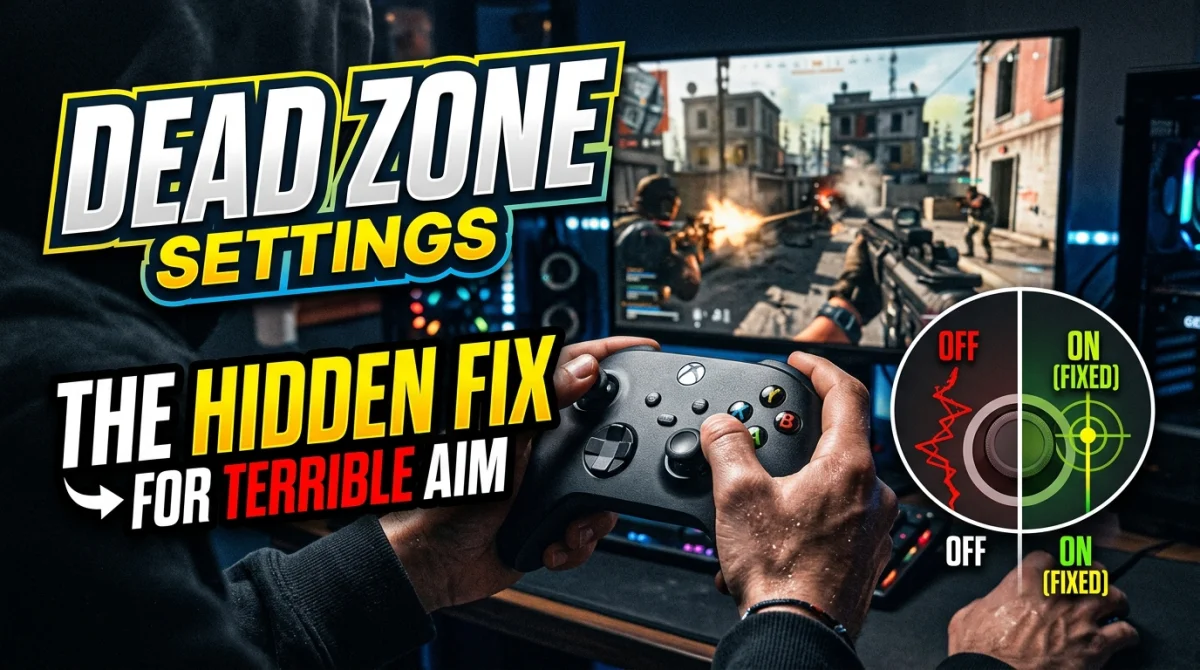
Your crosshair drifts when you barely touch the stick, and the moment you actually push it, the camera rockets past the target. Both symptoms point to the same hidden setting that almost no one opens: the dead zone. Dead zone settings sit buried in menus most players never open, yet they control how your stick registers input from the first millimeter of travel. Getting this number right fixes overcorrecting, stick drift, and that floaty feeling that makes controller aim feel hopeless. Here is what dead zone means, what values to use, and how to tune it in minutes.
Quick answer: dead zone is the distance the stick travels before the game registers input. Set the dead zone as low as you can without the camera drifting or wobbling on its own, typically 5 to 10 percent on modern controllers. Also set response curve to linear or slightly flat, and keep aim assist on. A lower dead zone makes small aim corrections register instantly instead of needing a big, overshooting flick.
What a Dead Zone Is in 30 Seconds
When you push a thumbstick, it does not detect input immediately. The first few degrees of travel are ignored by design, and that ignored area is the dead zone. Every controller has a hardware dead zone built in, and most games add a software dead zone on top of it.
- A dead zone that is too large: small corrections do nothing, so you over-push and overshoot.
- A dead zone that is too small: the stick's natural wear and tiny errors cause the camera to drift on its own.
The goal is the smallest dead zone where the camera stays perfectly still when you are not touching the stick. Anything bigger is aim that never registers.
How to Find Your Controller's Perfect Dead Zone
The tuning process takes about two minutes and works in any game that exposes the slider:
- Set the dead zone to its minimum, or to zero if the game allows.
- Let go of the sticks and watch the crosshair.
- If it drifts or wobbles, raise the dead zone by 1 percent at a time.
- Stop at the first value where the camera holds perfectly still.
- Push the stick gently and confirm that small inputs register smoothly.
Most modern controllers settle between 5 and 10 percent; older or worn ones may need 10 to 15 percent to hide drift. If it still drifts at high dead zones, the stick is worn and no setting can fully fix it.
Recommended Values by Game Type
| Game type | Left stick (move) | Right stick (aim) |
|---|---|---|
| Shooters | 5 to 10 percent | 5 to 8 percent |
| Third-person action | 10 percent | 5 to 10 percent |
| Racing and flight | 3 to 8 percent | 5 percent |
| Fighting games | 15 to 20 percent | n/a |
Shooters reward the tightest right-stick dead zone because micro-corrections decide gunfights. Racing games need a small dead zone so you can feather the steering, while fighting games use a larger one to avoid accidental directional inputs.
Response Curve: The Setting That Multiplies Your Dead Zone
Dead zone is only half the story. The response curve decides how the stick translates travel into camera speed, and the wrong curve makes a tuned dead zone pointless.
- Linear: camera speed matches stick travel 1 to 1, precise but twitchy for some players.
- Standard: a smooth ramp, good default, slightly forgiving.
- Flat or Dynamic: slow start then fast, helps track distant targets.
- Exponential: gentle start that ramps hard, prone to overshooting.
Controller pros in games like Apex Legends and Call of Duty often use a linear or slightly-flat curve with a low dead zone, because it lets small flicks land exactly where you intend. For a complete setup that covers curve, sensitivity, and vibration together, read our guide to best controller and keyboard settings for faster reactions.
Dead Zone in Popular Games: Defaults and What to Change
Games ship with wildly different default dead zones. Here is where to look in the biggest titles:
| Game | Where to find it | Common good value |
|---|---|---|
| Call of Duty | Controller settings, Aim | 0.05 to 0.10 |
| Apex Legends | Controller, Stick Dead Zone | Small, tune down |
| Fortnite | Controller Options | 5 to 8 percent |
| Halo Infinite | Look/Move Dead Zone | 0 to 4 (inner) |
| Destiny 2 | Controller | Lower from default |
In Call of Duty, the default is often around 0.10, and dropping it to 0.05 makes small corrections register noticeably faster. In Apex Legends, most players lower the dead zone from default and switch the curve to linear or a gentle custom one.
The Aim Assist Question
Aim assist is not a crutch, it is part of how controller aim works. Keep it on, especially in multiplayer, because the game tunes its movement around it. What ruins aim is a huge dead zone forcing you to flick hard, not the assist pulling gently. Turn off aim assist and you will need far more practice time.
Console vs PC: The Same Rules Apply
Console players are stuck with whatever the game provides, and many games omit the dead zone slider entirely. PC controller players have two extra weapons:
- Steam's controller settings include a per-stick dead zone and response curve you can apply to any game.
- DS4Windows or reWASD can tune the hardware dead zone before the game sees any input.
If a console game hides its dead zone, look for a "calibrate controller" option, which does the same job internally. If aim still feels sluggish, the delay may be in the render pipeline, not the stick; our input lag guide explains how to shave frames off reaction time.
Mouse Players, Read This Instead
If you use a mouse, dead zone does not apply, and the equivalent problem is sensitivity and raw input. The one setting that kills mouse aim is covered in detail in our guide to the one setting 90% of players get wrong, which includes the exact eDPI ranges pros run.
Key Takeaways
- Dead zone is the ignored stick travel before input registers, and too much of it ruins aim.
- Tune it by lowering until drift appears, then raising 1 percent at a time.
- Most modern controllers settle at 5 to 10 percent.
- Response curve and dead zone work together; linear or flat curves pair well with a low dead zone.
- Aim assist stays on; it is part of normal controller aim.
- PC players can fix hidden dead zones with Steam or DS4Windows.
Frequently Asked Questions
What dead zone should I use?
Start at 5 percent and lower it until the camera drifts, then raise it 1 percent at a time until it holds still. That number, usually 5 to 10 percent, is your controller's true dead zone.
Is a lower dead zone always better?
Only until drift appears. Below your controller's physical minimum, the camera wobbles and you fight the stick constantly. The best value is the lowest one where the camera stays still.
Can a dead zone fix stick drift?
A higher dead zone can mask light drift by ignoring the worn area of the stick. If drift appears beyond 15 to 20 percent dead zone, the stick mechanism is worn and needs cleaning or replacement.
Conclusion
Terrible controller aim is usually a settings problem, not a skill problem. Tune your dead zone down to the point where drift starts, then back off one percent, pair it with a linear or flat response curve, and keep aim assist enabled. The same controller will suddenly feel tight, responsive, and predictable in your next match.
What dead zone value works best for your controller? Post your number and your game in the comments, share this guide with a friend who still aims with the face buttons, and subscribe for more controller and settings guides.
Ready to play?
Puzzle, arcade, 3D, word & sports games for every age — instant play, no registration.
Comments
No comments yet. Be the first to share your thoughts!