7 Settings to Turn Off First in Every New Game
Every new game dumps a settings menu on you packed with options built to look cinematic, not to play well. Motion blur, depth of field, and VSync ship enabled by default in most titles, and all of them work against your performance and your aim. This guide lists the seven settings you should turn off first in every new game, explains exactly what each one costs you, and gives you the fastest path from default to competitive. Do these before touching anything else and most games will feel instantly cleaner, sharper, and faster.
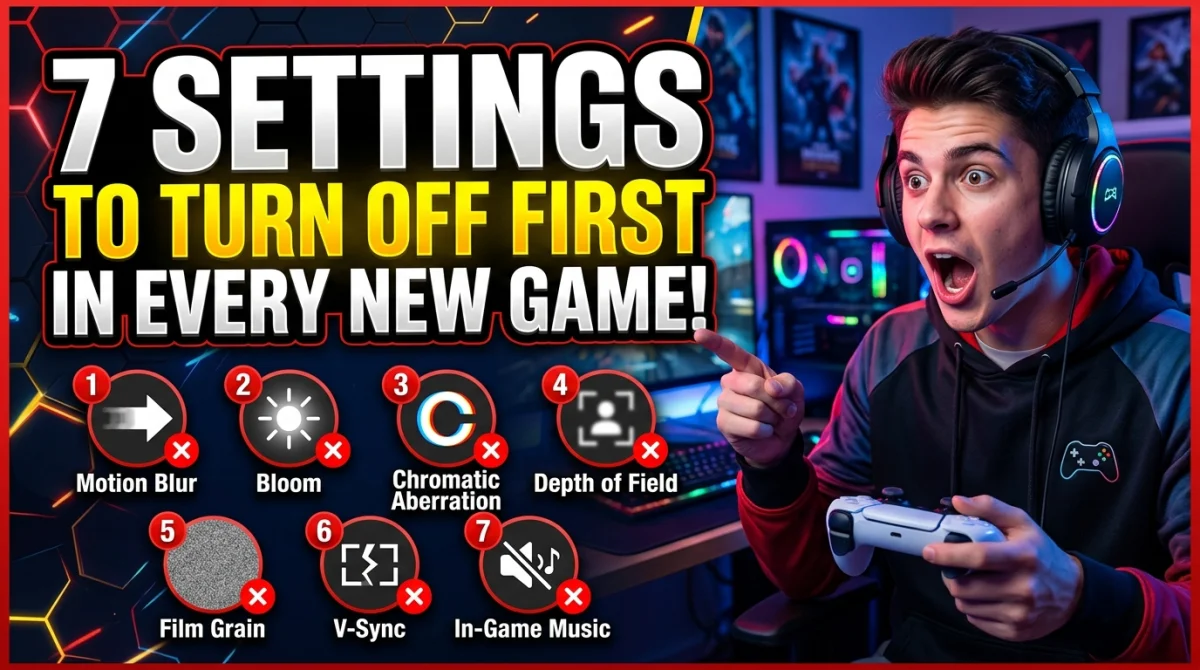
Turn these seven settings off first in every game: motion blur, depth of field, VSync, film grain, chromatic aberration, mouse acceleration, and dynamic resolution or auto presets. They add latency, blur your view, or change your aim mid-fight. Then cap your frame rate and enable latency features like Nvidia Reflex or AMD Anti-Lag. Most titles look sharper and run better within five minutes.
The 7 Settings to Turn Off First
1. Motion Blur
Motion blur smears the image when the camera moves, mimicking real-world shutter blur. It looks cinematic and destroys visibility. In fast games it hides enemies during flicks and pans, exactly when you need clarity. Turn it off in every game, always.
2. Depth of Field
Depth of field blurs everything outside your focal point, which sounds realistic and is useless in gameplay. It makes distant enemies soft right when you need to spot them. Off.
3. VSync
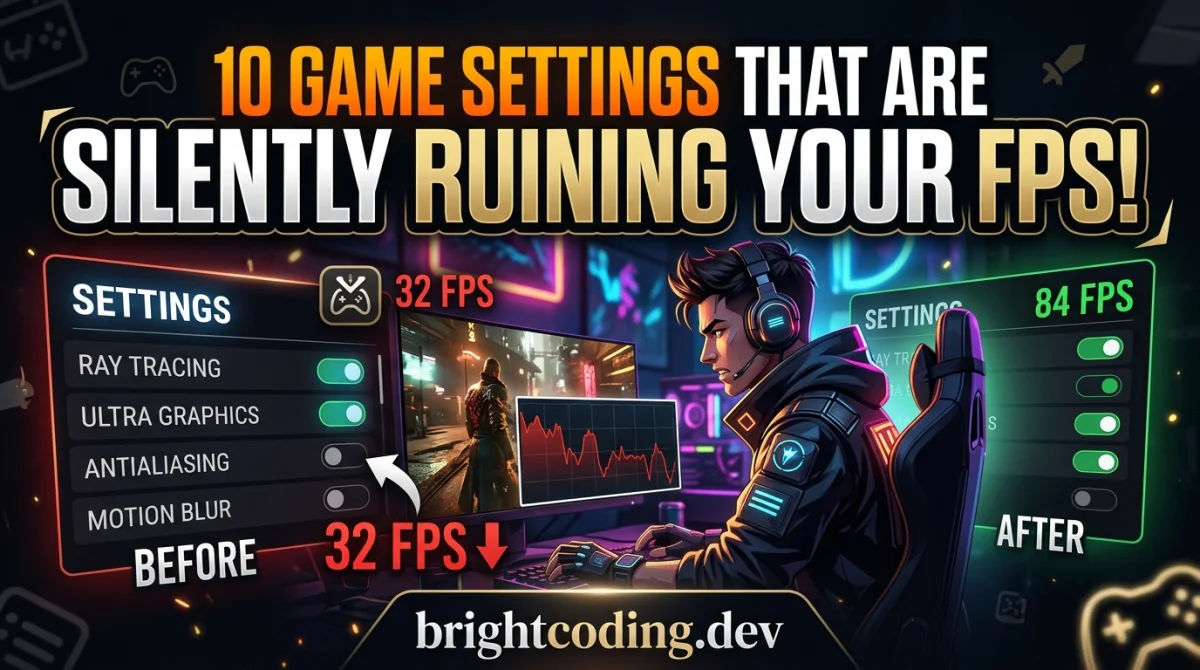
VSync synchronizes frame output to the monitor's refresh and can add a full frame or more of latency. On a 60 Hz screen that is up to 16.7 ms per frame. Disable it and use a frame cap or G-Sync / FreeSync instead. This is one of the many settings that are silently ruining your FPS without obvious visual damage.
4. Film Grain
Film grain overlays noise across the whole image to look like movie footage. It adds nothing but visual noise that reduces clarity in dark scenes and long-range fights. Off.
5. Chromatic Aberration
Chromatic aberration splits colors at high-contrast edges, producing a subtle rainbow fringe. It is a film effect that makes text and distant targets harder to read. Off.
6. Mouse Acceleration
Mouse acceleration changes how far your crosshair travels based on how fast you swipe, so the same flick lands differently every time. Turn it off in Windows (Enhance Pointer Precision) and inside the game if it has its own option. Combined with controller and keyboard settings for faster reactions, killing acceleration is one of the biggest feel improvements you can make.
7. Dynamic Resolution and Auto Presets
Auto-detect graphics, dynamic resolution, and adaptive presets change your settings on the fly based on load. That sounds helpful and produces inconsistent image quality and frame pacing. Set your own resolution and quality manually instead, then tune from a known baseline.
What to Enable Instead
Removing the bad stuff only gets you halfway. Replace those defaults with settings that actually help:
| Instead of | Enable |
|---|---|
| VSync | Frame cap at your refresh rate, or G-Sync / FreeSync |
| Auto-detect | Manual quality preset one step below max |
| Default latency | Nvidia Reflex or AMD Anti-Lag |
| High shadows / fog | Lower shadows and volumetric fog for more FPS |
| Default refresh | 144 Hz or your monitor's maximum in-game |
The full checklist of defaults worth changing is covered in our top 10 settings every new player should change, which includes the gameplay options hidden deeper in the menu.
Do This on Console Too
The same logic applies to consoles. Many titles ship with motion blur and depth of field enabled, and performance modes may keep them on. Set the game to performance mode, turn off the camera effects where the menu allows, and enable Game Mode on your TV. The goal is the same: fewer filters between you and the game.
The 5-Minute New Game Tune-Up
- Open the video or graphics tab in settings.
- Turn off motion blur, depth of field, film grain, and chromatic aberration.
- Disable VSync and mouse acceleration.
- Set resolution and quality manually, no auto presets.
- Cap the frame rate and enable Reflex or Anti-Lag.
- Play one match, then adjust brightness to see dark corners clearly.
If the game still stutters after the tune-up, the problem is not post-processing, and our game stutter fixes walk through the frame-time causes.
Key Takeaways
- Motion blur, depth of field, film grain, and chromatic aberration all reduce visibility.
- VSync adds latency, disable it and cap the frame rate instead.
- Mouse acceleration kills consistent aim, turn it off in Windows and in-game.
- Skip auto presets and dynamic resolution, tune manually from a baseline.
- Apply the same cleanup on console with performance mode and TV Game Mode.
Frequently Asked Questions
Does turning off motion blur improve FPS?
It usually gives a small boost and always improves clarity. The bigger win is visibility, especially when flicking and tracking in shooters.
What is the single most important setting to turn off?
VSync, for latency reasons. On a high refresh monitor it can add a frame or more of delay, and a frame cap or variable refresh solves the tearing without the cost.
Should I disable mouse acceleration in games?
Yes. Mouse acceleration makes aim unpredictable because the same movement lands differently at different swipe speeds. Turn it off in Windows and in the game.
Why do developers turn these settings on by default?
Because they make the first seconds of a game look like a cinematic trailer. They are chosen for show, not for play, which is exactly why you should turn them off.
Conclusion
The defaults in a new game are designed to impress you in the first five minutes, not to help you in hour fifty. Turning off motion blur, depth of field, VSync, film grain, chromatic aberration, mouse acceleration, and auto presets takes five minutes and makes every game cleaner and faster. Make it a habit at launch, tune the rest from a clean baseline, and your performance improves before you even play.
Which setting do you kill first in a new game? Tell us in the comments, share this with your squad, and subscribe for more settings guides that make games feel better.
Ready to play?
Puzzle, arcade, 3D, word & sports games for every age — instant play, no registration.
Comments
No comments yet. Be the first to share your thoughts!