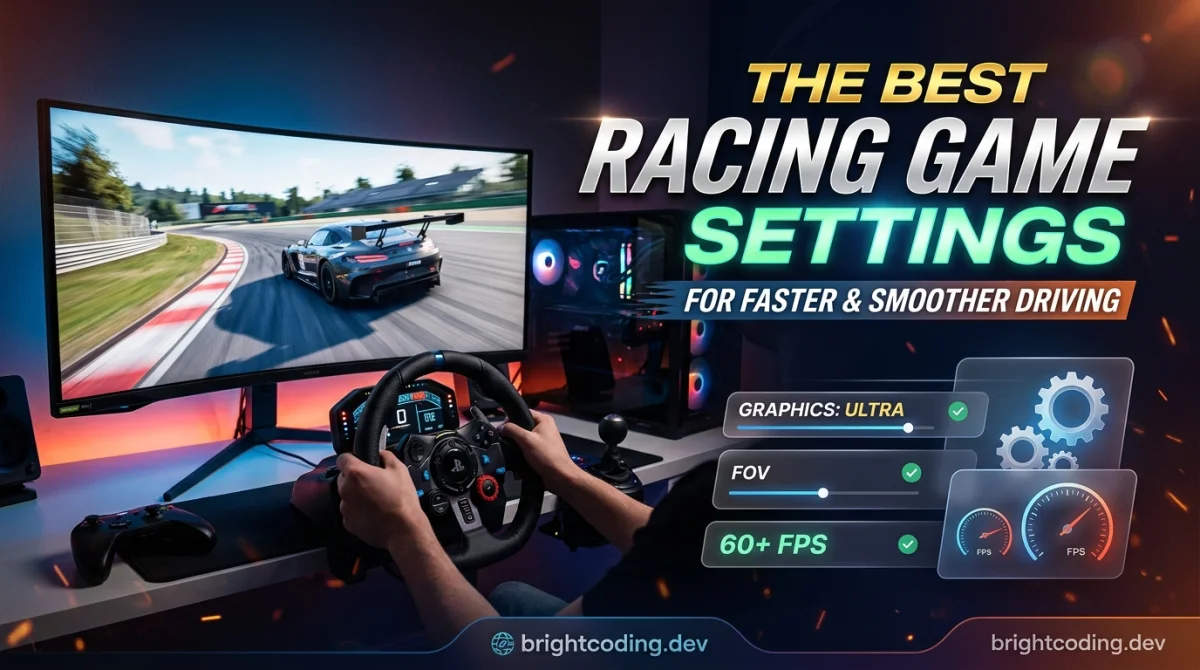
The Best Racing Game Settings for Faster and Smoother Driving
You are losing races before the lights even go out. Not because your reflexes are slow, but because your car is set up to fight you. Understeer on entry, snap oversteer on exit, a wheel that feels like it is steering through mud. Sound familiar?
The fix is rarely a new wheel or a $600 rig. It is the settings menu you have been ignoring since day one. This guide covers the racing game settings that actually make you faster and smoother, from assists and force feedback to FOV and controller deadzones, with a plan you can run tonight.
The Problem: Your Car Is Set Up Against You
Most racing games ship with defaults tuned for a controller player who has never touched a racing game. That means aggressive assists, a narrow field of view, and steering that smooths out your inputs until the car feels disconnected.
The result is a strange paradox. You feel like you are driving well, but your lap times stall. You brake too early because you cannot judge distance. You fight the wheel through corners. You blame the car, then the track, then yourself.
Here is the mistake almost everyone makes: they crank up assists thinking it will help. Traction control and stability management do keep you on track, but they also cut power the moment you want it and brake for you when you did not ask. They teach you nothing and slow you down once you improve.
Why It Happens: Assists, Input Lag, and Bad Defaults
Three things are working against you.
Assists intervene at the worst time. Stability control detects a slide and cuts throttle. That saves a beginner but punishes anyone trying to rotate the car on purpose. Braking assist grabs the brakes mid corner and unsettles the chassis.
Your inputs are being filtered. Default steering sensitivity and deadzone settings are built to be forgiving, not precise. A big deadzone means the first chunk of your stick or wheel movement does nothing. Low sensitivity means you have to turn the wheel twice as far for the same result, so you are always reacting late.
The camera is lying to you. A narrow field of view compresses the track ahead. Corners arrive before you can read them. A cockpit cam with the wrong seat position hides your apex entirely.
None of this is your fault. It is just the default state of most games, and nobody tells you to change it.
The Solutions: What Actually Works
There is no single magic slider. But there is a stack of changes that compound. Here is what each one does and who it suits.
Turn Assists Down, Then Off
Start by dropping traction control and stability control one notch at a time. Keep ABS on if you are on a controller, since brake modulation is genuinely harder without a load cell pedal.
The trade-off is real. You will spin more in the first hour. That spin is the lesson. Once you feel the rear step out and catch it, you have learned something no assist can teach.
When it makes sense: any time you are plateauing. If you are still learning the track layout, leave the assists on for a session, then peel them back.
Fix Your Field of View and Camera
A wider FOV shows more of the road and makes speed feel more manageable. Too wide and everything distorts at the edges. A good starting range for a single monitor is roughly 50 to 65 degrees, and you tune from there. On a triple setup or ultrawide, push higher.
For chase cam players, the goal is different: pull the camera back and raise it slightly so you can see the front of your car and the apex at the same time.
Calibrate Steering Sensitivity and Deadzone
Set your deadzone as low as your hardware allows without drift. On a worn controller stick, that might be 5 percent. On a healthy one, 0 to 2 percent works.
Then raise steering sensitivity in small steps until you can hit the apex without overcorrecting. If you are sawing at the wheel constantly, it is too high. If you have to crank the stick to make a hairpin, it is too low.
Tune Force Feedback on a Wheel
This is where wheel players gain the most. Force feedback should tell you when the front tires are losing grip, not just shake your desk.
Turn down the overall strength until you can feel the detail, then raise the road and tire effects. Clipping is the enemy: if the wheel feels heavy and numb in fast corners, you are clipping and losing all the useful information.
Set Your Brake Bias and Differential
These are car setup, not game settings, but they are free speed. Move brake bias slightly rearward for more rotation on entry, forward for stability. A softer differential on entry helps the car turn. Change one thing at a time or you will never know what worked.
If you are new to how different racing subgenres play, our breakdown of game genres explained covers where sim, arcade, and simcade titles sit, which tells you how much of this actually matters for the game you play.
The Best Choice: It Depends on Your Setup
| Your situation | Priority settings | Skip for now |
|---|---|---|
| Controller, arcade racer | FOV, deadzone, sensitivity, ABS on | Force feedback, differential tuning |
| Controller, sim or simcade | Assists off, brake bias, differential | FFB strength |
| Wheel, any racer | FFB strength and detail, FOV, sensitivity | Nothing, tune it all |
| Casual, few hours a week | FOV, one assist level down | Deep car setup |
If you race on a controller, spend your time on camera and deadzone. If you have a wheel, force feedback is where your lap time hides. If you only play an hour a week, just widen the FOV and drop one assist level. That alone will feel like a different game.
There is no universal best setting. There is only the best setting for your hardware and your hands, found by changing one variable at a time.
Step-by-Step Action Plan
Work through this in order. One change per session, then test.
- Widen your FOV by 5 to 10 degrees from the default. Do five laps. Adjust again if corners still surprise you.
- Lower your deadzone to the smallest value that does not cause drift. Test with the car sitting still.
- Raise steering sensitivity in small steps until you can hit apexes cleanly without constant correction.
- Drop one assist level. Run ten laps. If you spin more than twice per lap, put it back and try again next session.
- If you use a wheel, tune force feedback. Lower overall strength, raise tire and road detail, and stop before it clips.
- Set brake bias and differential last, one click at a time, and only on a track you know well.
- Save a baseline setup you can return to. Nothing is worse than losing a good tune to an accidental reset.
Want a low-pressure place to practice car control before you jump back into ranked? The free browser games on our games hub are a decent warm-up, and the daily challenge gives you a fresh track or task each day.
Common Mistakes to Avoid
- Changing five settings at once. You will never know what helped. Fix: change one, test, repeat.
- Cranking force feedback to maximum. It clips and goes numb. Fix: lower strength, raise detail.
- Turning off every assist on day one. You will spin constantly and learn nothing. Fix: peel them back one level per session.
- Ignoring the camera. A bad FOV costs you more time than any car setup. Fix: widen it and recheck your seat position.
- Copying a pro's setup blindly. Their wheel, pedals, and driving style are not yours. Fix: use their setup as a starting point, then tune.
- Never saving a good baseline. Fix: save it, name it, protect it.
Expert Takeaway
The single biggest gain is not a slider, it is the feedback loop. Change one setting, drive ten laps, compare your times, keep or revert. Do that for a week and you will out-drive someone who spent the same money on a new wheel and never opened the menu. Settings are free speed, but only if you test them like a scientist instead of guessing like a gambler.
FAQ
What are the best racing game settings for faster lap times? Wider field of view, low steering deadzone, adjusted sensitivity, assists reduced or off, and a force feedback setup that does not clip. There is no single magic value, so tune one setting at a time and verify with lap times.
Should I turn off traction control and stability control? Eventually, yes, since they cut power and brake for you. Start by dropping one level per session. Keep ABS on for controller play, since brake modulation is much harder without proper pedals.
What field of view should I use? On a single monitor, a starting range is roughly 50 to 65 degrees, then adjust. If corners keep surprising you, widen it. If the edges look distorted, narrow it slightly.
Does force feedback make you faster? It can, because it tells you when the front tires are losing grip, which helps you brake and turn at the limit. The catch is clipping: too much strength makes the wheel numb and useless.
How do I stop spinning out in racing games? Lower your steering sensitivity, raise the deadzone slightly if your stick drifts, and add throttle more gradually out of corners. Then practice on a track you know before returning to racing.
For more setup guides, ranked tips, and breakdowns of what is worth your time, browse the GamingUp blog and the tips, tricks and guides hub.
Ready to play?
Puzzle, arcade, 3D, word & sports games for every age — instant play, no registration.
Comments
No comments yet. Be the first to share your thoughts!